A desktop PC with keyboard remains a practical choice for work, study, creative tasks, and everyday computing. A physical keyboard makes long-form typing, coding, data entry, and keyboard shortcuts more efficient than touchscreen input. The best setup is not simply the most powerful computer or the most advanced keyboard; it is the combination that fits your workflow, workspace, and comfort needs.
Start with the way you work
Before choosing a desktop with keyboard, consider which activities occupy most of your time. Someone who writes or enters data may value a comfortable layout and quiet, consistent keys. A programmer may prefer easy access to shortcuts and customizable key mapping. Creative professionals can benefit from programmable keys, while a shared office may require a durable, quiet keyboard that is easy to clean.
Also consider the physical space available. A full-size keyboard includes a number pad and may be useful for spreadsheets, accounting, and frequent numerical entry. A tenkeyless or compact model leaves more room for a mouse and may suit smaller desks. Make sure the keyboard layout matches your operating system and that any special software or firmware is supported by the PC you plan to use.
Keyboard features that affect comfort
The keyboard is the part of the computer you interact with most directly, so its shape and key action deserve careful attention. Useful features include:
- Split or curved layouts: These can help position the hands and forearms more naturally.
- Adjustable tilt or tenting: Tenting raises the centre of the keyboard and may reduce the need to rotate the forearms inward.
- Detachable palm support: A palm rest can make pauses more comfortable, although it should not encourage prolonged pressure on the wrists while typing.
- Low-profile keys: Shorter key travel may feel efficient for users who prefer a lighter, flatter design.
- Programmable keys: Custom shortcuts can reduce repetitive actions in design, editing, programming, and office applications.
Ergonomic designs are not equally comfortable for everyone. A split keyboard may be helpful for one person but feel unfamiliar to another. If possible, test a keyboard before committing to it, especially when considering an unusual layout or mechanical switch type.
Understanding switch types and key feel
Switches determine how much force a key requires, how far it travels, and how much sound it makes. Membrane keyboards are often quiet and straightforward, making them suitable for shared workstations. Scissor-switch keyboards typically have a shallow profile and a lighter, laptop-like feel.
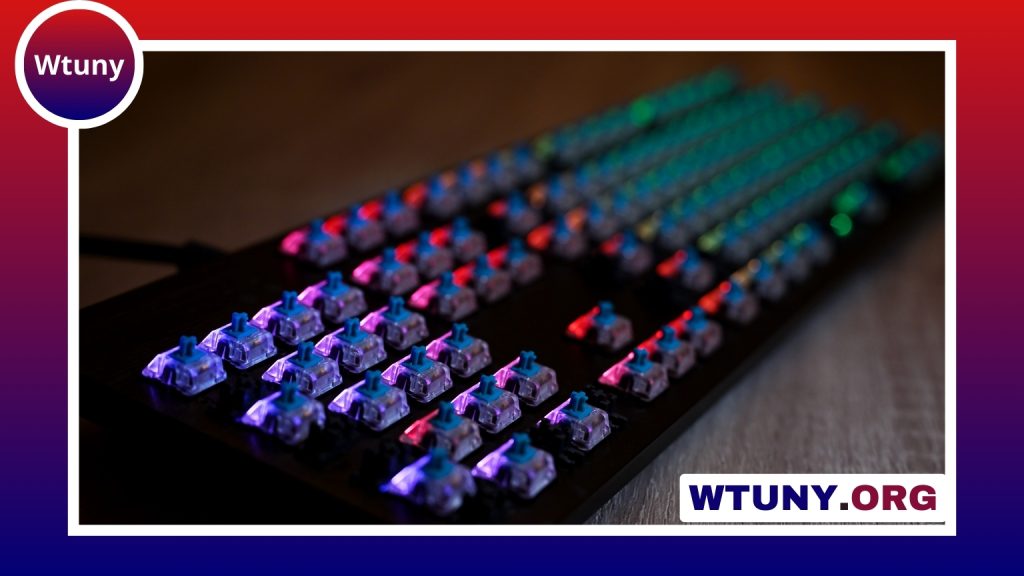
Mechanical keyboards use individual switches and are available in different styles. Tactile switches provide noticeable feedback when a key is pressed, while clicky switches add an audible sound. Linear switches move more smoothly without a tactile bump. Silent mechanical options can provide mechanical key action with less noise. The right choice depends on typing habits, noise restrictions, and personal preference rather than on a single universally superior design.
Wired or wireless connectivity?
A wired USB keyboard offers simple setup and avoids battery management. It can be a sensible choice for a fixed desktop workstation. Wireless keyboards provide a cleaner desk and greater flexibility, particularly when switching between a desktop PC and other compatible devices. Bluetooth and USB receiver connections are common, but compatibility should be checked before purchase. For compact wireless typing, consider a smaller Bluetooth option that keeps your PC setup uncluttered.
For a wireless setup, consider battery life, charging arrangements, and whether the keyboard can pair with multiple devices. A model with onboard profiles or stored key mappings may also be convenient if you move between computers. In a business or shared environment, confirm that required drivers and configuration software work with the operating systems in use.
Position the PC and keyboard correctly
Even a well-designed keyboard can become uncomfortable if it is placed poorly. Position it close enough that you do not need to reach forward. Keep your shoulders relaxed, your elbows near your sides, and your forearms roughly parallel to the floor or slightly declined. Try to keep your wrists neutral instead of bent upward or sideways.
The monitor, chair, and keyboard should be adjusted as a set. A screen placed at a comfortable viewing height can make it easier to maintain a balanced posture. If your desk has an adjustable keyboard tray, use it to bring the keyboard to a suitable height during typing. Move it aside when you need more desk space. If discomfort continues despite adjustments, take regular breaks and consider seeking professional advice rather than simply buying a different keyboard.
Maintenance and upgrade considerations
Dust, crumbs, and spills can affect key movement and shorten the useful life of a keyboard. Clean the surface regularly using methods appropriate for the device, and follow the manufacturer’s guidance for deeper cleaning. Shared keyboards should be easy to sanitize without damaging their finish.
An upgrade may be worthwhile when the current keyboard causes repeated errors, lacks important shortcuts, has unreliable keys, or no longer suits your work. Replaceable keycaps, hot-swappable switches, and programmable profiles can make some keyboards easier to maintain or adapt. However, a better layout and a properly adjusted workstation often provide as much benefit as premium hardware.
Build a setup that fits you
Choosing a PC with keyboard is a balance of computer performance, keyboard design, connectivity, and desk ergonomics. Begin with your daily tasks, then compare layout, switch feel, size, and useful features. Once the equipment is installed, spend time adjusting its position and developing comfortable typing habits. A setup that matches your needs will support efficient work without relying on unnecessary features.