
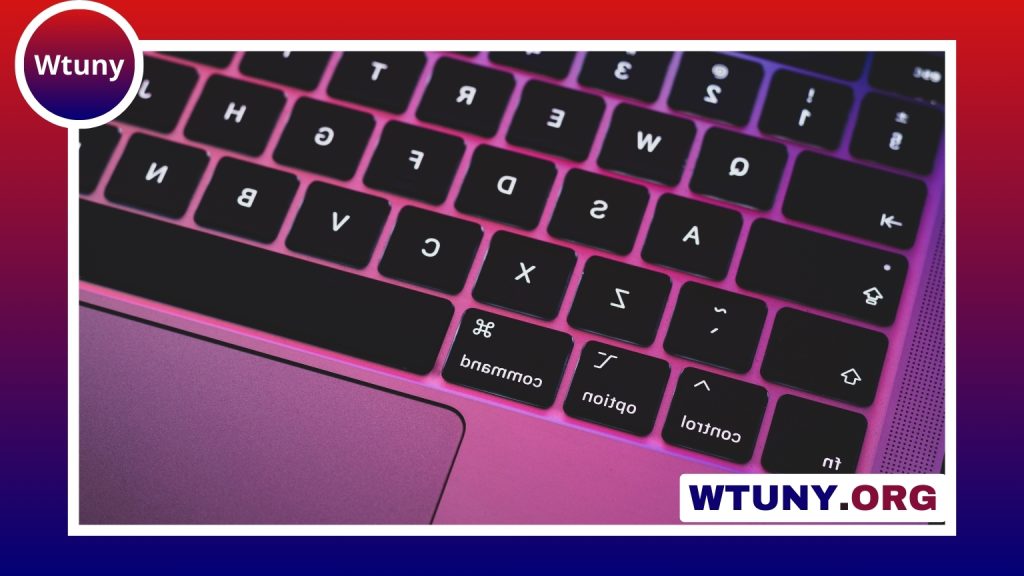
A wireless keyboard with a built-in trackball combines typing and cursor control in one compact device. Instead of moving a separate mouse across a desk, you operate the stationary ball with your thumb, fingers, or palm. This design can be useful in rooms with limited surface space, from a sofa-based media centre to a compact home office.
The right choice depends on how you plan to use it. Consider the keyboard layout, trackball control, wireless connection, battery arrangement, and overall comfort rather than treating every integrated model as interchangeable.
Why use a keyboard with an integrated trackball?
The main advantage is convenience. A single wireless device is easier to carry, store, and use than a keyboard paired with a separate mouse. Because the trackball stays in one place, it does not require a clear area beside the keyboard. This makes it practical on a small desk, a tray table, or a living-room sofa.
A trackball can also suit users who prefer controlling the pointer without repeatedly moving their whole arm. Some people find this more comfortable for occasional navigation, particularly when working in a confined position. However, comfort is personal, so the location and size of the ball should be assessed carefully before buying.
Features to compare
Trackball design and pointer control
The ball should move smoothly and respond consistently to small movements. Check whether the design is operated by the thumb, fingers, or the whole hand, since each arrangement feels different. Adjustable pointer speed or sensitivity is useful when you switch between precise selection and faster movement across the screen.
Also examine the position of the click buttons and scroll control. A well-placed arrangement can make browsing feel natural, while awkward button placement may cause unnecessary hand movement. If possible, try the layout before committing to long typing sessions.
Wireless connectivity
Bluetooth is convenient for compatible laptops, tablets, and phones because it does not require a dedicated receiver. A 2.4 GHz USB receiver can offer a straightforward connection for computers and media PCs, particularly when plug-and-play setup is a priority.
Some keyboards support more than one connected device and include a switch for moving between them. This can be useful if you regularly alternate between a desktop, laptop, or tablet. Confirm that the connection method is supported by the equipment you intend to use.
Keys, layout, and battery
Do not overlook the keyboard itself. Compare the key spacing, full-size or compact layout, function-row arrangement, and availability of navigation keys. A small footprint may be valuable in a media centre, while a larger layout can be more comfortable for extended writing.
Battery type and charging options affect everyday convenience. A rechargeable design avoids disposable battery changes, while a replaceable-battery model may be easier to keep running when a charger is not available. Look for power-saving features and an accessible power switch.
Useful applications
- Media centres: Navigate menus, search for content, and control a computer connected to a television without keeping a mouse on the sofa.
- Small workspaces: Reduce desk clutter when there is little room for a separate pointing device.
- Shared or mobile setups: Carry one input device between rooms, desks, or compatible computers.
- Industrial and kiosk environments: A suitably protected trackball design may be easier to manage where dust, frequent handling, or limited space are concerns.
For intensive gaming, detailed graphics work, or tasks that involve wide and rapid pointer movement, a conventional mouse may still be preferable. A wireless keyboard with trackball is generally strongest when convenience, compactness, and occasional pointer control matter most.
Setup and maintenance
Bluetooth models are normally paired through the device’s Bluetooth settings. For a keyboard with a USB receiver, connect the receiver to an available port and follow any on-screen setup instructions. Keep the receiver within a practical range and avoid placing it where it can easily be damaged or lost.
Dust and debris can affect trackball movement. Disconnect or switch off the keyboard before cleaning. Wipe the ball with a soft, dry cloth and use a small brush or a short burst of compressed air to clear the surrounding cavity, following the manufacturer’s guidance. Avoid forcing the ball or using liquid inside the mechanism.
Ergonomic considerations
Place the keyboard so your forearms are reasonably level and your wrists are not sharply bent. The trackball should be reachable without stretching or twisting your hand. Adjustable feet or a modest incline may improve comfort, but a raised angle is not automatically better for everyone.
Before choosing, decide whether an integrated trackball genuinely fits your routine. It can simplify a compact setup and eliminate a separate mouse, but the best model will be the one whose ball, buttons, keys, and connection method feel comfortable for the way you work.






