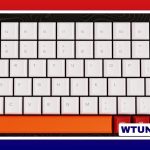
A keyboard does far more than enter letters and numbers. Its keys can navigate documents, control software, manage media, trigger shortcuts, and automate repetitive work. Although layouts vary between laptops, office keyboards, mechanical boards, ergonomic models, and gaming devices, most keyboard button functions fit into a few useful categories. Understanding keyboard button functions helps when choosing different keyboard layouts that provide specialized key behavior.
Common keyboard key groups
Understanding the purpose of each key group makes it easier to learn shortcuts and choose a keyboard that suits your work.
- Alphanumeric keys: Letters, numbers, punctuation marks, and other characters used for typing.
- Modifier keys: Shift, Ctrl, Alt, and the Windows or Command key change what another key does when pressed together.
- Control keys: Enter confirms an action or creates a new line, Backspace removes characters to the left, Delete removes characters to the right, and Escape usually cancels or closes an active operation.
- Navigation keys: Arrow keys move through text and menus, while Home, End, Page Up, and Page Down help you move through documents and pages.
- Function keys: F1 through F12 perform commands that depend on the operating system or application. Their actions may include help, refreshing, or other program-specific functions.
- Numeric keypad: A separate number pad can make frequent number entry and basic calculations faster, particularly in office and data-entry work.
Modifier keys are especially important because they turn ordinary keys into shortcuts. Shift commonly produces capital letters or alternate symbols. Ctrl or Command is used with combinations such as copy, paste, save, and undo, while Alt or Option can provide additional commands or access to menus. The exact combinations vary by operating system and application.
Function keys, Fn keys, and alternate layers
Many laptops and compact keyboards place several actions on the same physical key. An Fn key activates these secondary functions, which may include volume adjustment, media playback, screen brightness, wireless controls, or switching between displays.
Some keyboards include an Fn Lock option. This lets you choose whether the top row behaves primarily as standard F1–F12 keys or as the printed secondary controls. If the function row suddenly changes behavior, checking Fn Lock is one of the first troubleshooting steps to try.
Programmable keyboards can go further by offering layers or profiles. A layer changes the action assigned to a group of keys, while a profile stores a collection of settings for a particular application or activity. For example, one profile might suit coding, another gaming, and another video editing.
How keyboard types affect button functions
Different keyboard designs emphasize different forms of control.
- Standard office keyboards generally provide familiar keys with straightforward functions and little customization.
- Laptop and compact keyboards save space by combining keys and relying on Fn shortcuts for media, brightness, and system controls.
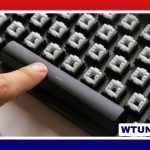
- Mechanical keyboards use individual switches with different tactile and actuation characteristics. Many also support programmable keys, rotary knobs, media controls, or multiple profiles.
- Membrane and chiclet keyboards typically focus on a slim design, quiet operation, and simple everyday input.
- Ergonomic keyboards may split or rearrange the layout and add duplicate modifiers so frequently used commands are easier to reach.
- Gaming keyboards often include programmable macro keys and features intended to help register multiple simultaneous key presses.
- Macro pads and keypads provide a small number of dedicated buttons for repetitive commands, shortcuts, or numeric entry.
Remapping keys and creating macros
Remapping changes a key’s assigned action. Depending on the keyboard and its software, you may be able to replace a character with another key, create a shortcut, switch layers, or launch a command. Some programmable boards store these settings in firmware, while others depend on software running on the computer. Understanding slide-out keyboard layouts helps explain how physical keys complement touch controls on hybrid mobile devices.
A macro performs a sequence of keystrokes or commands from one button press. This can be useful when an action is repeated many times during the day. Examples include:
- Assigning a frequently used editing command to a macro pad.
- Creating a shortcut for a build command or code snippet.
- Adding dedicated controls for media playback or streaming scenes.
- Combining a complex shortcut into one easier-to-reach key.
- Adjusting the layout to reduce difficult reaches for accessibility needs.
When remapping, change one or two high-value actions first. A small, memorable set of custom keys is usually easier to learn than a complicated layout that changes every key.
Troubleshooting unexpected key behavior
If a key does not perform its usual function, check whether an alternate layer, Fn Lock setting, or application profile is active. Programmable keyboard software may also have loaded the wrong profile. Restoring the default layout can help identify whether the problem is caused by configuration rather than hardware.
For mechanical keyboards, make sure the keycap is seated correctly and that the switch is properly installed if the board allows switch replacement. Firmware or configuration updates may resolve glitches, but save or record your custom layout before changing settings.
Choosing the right keyboard functions
Start with the tasks you perform most often. A number pad is valuable for frequent numeric entry, dedicated media controls help with audio and video, and programmable layers benefit users who switch between specialized applications. An ergonomic layout may be more important than extra buttons during long typing sessions, while a compact keyboard can be preferable when desk space or portability matters.
The best keyboard is not necessarily the one with the most keys. It is the one whose layout, shortcuts, and customization options make your everyday actions easier, faster, and more comfortable.