A USB keyboard and mouse can make a PlayStation 4 more convenient for typing, navigating menus, and playing compatible games. The PS4 is designed around controller input, so support varies from one game to another. A keyboard may work for messages and system navigation even when a particular game does not support mouse aiming.
What the PS4 supports
The PS4 can recognise many standard USB keyboards and mice through its USB ports. A keyboard is especially useful for entering messages, searching the PlayStation Store, and using other text fields without relying on the on-screen keyboard.
Mouse support is more limited. The pointer may work in some system menus or browsing tasks, but game control depends on the software. Some games offer native keyboard-and-mouse support, while others accept only a controller unless an additional input adapter is used.
How to connect a USB keyboard and mouse
- Connect the keyboard and mouse to available USB ports on the PS4.
- Turn on the console and allow it to detect the connected devices.
- Open the PS4 settings and check the keyboard options if letters or symbols do not match the keys you are pressing.
- Launch a compatible game and review its control settings for keyboard-and-mouse options.
A wired keyboard for PS4 is usually the simplest choice because it does not require pairing or battery changes. It also keeps the connection direct, which can be useful for desk-based gaming setups. Make sure the cables are long enough to reach your preferred seating position without being stretched across the floor.
Which games benefit from keyboard and mouse input?
Keyboard and mouse controls are most useful in games that involve frequent aiming, precise camera movement, extensive menus, or many actions to assign to keys. First-person shooters, strategy games, and MMO-style titles may benefit considerably when they provide native support.
Compatibility should be checked for each individual game. A title may support a keyboard for chat but not accept mouse input during gameplay. Other games may provide full support, partial support, or no keyboard-and-mouse controls at all. Competitive multiplayer games can also restrict these controls to preserve the intended balance between controller and keyboard-and-mouse players.
Choosing suitable hardware
You do not need specialised PC gaming equipment for basic PS4 use. A standard USB keyboard is often enough for typing and menu navigation. When choosing a model, consider:
- Connection: Wired keyboards offer a straightforward plug-in setup, while wireless models can reduce cable clutter.
- Layout: Choose a layout that matches the language and key arrangement you use.
- Comfort: A full-size keyboard may be convenient at a desk, while a compact model can leave more room for the mouse.
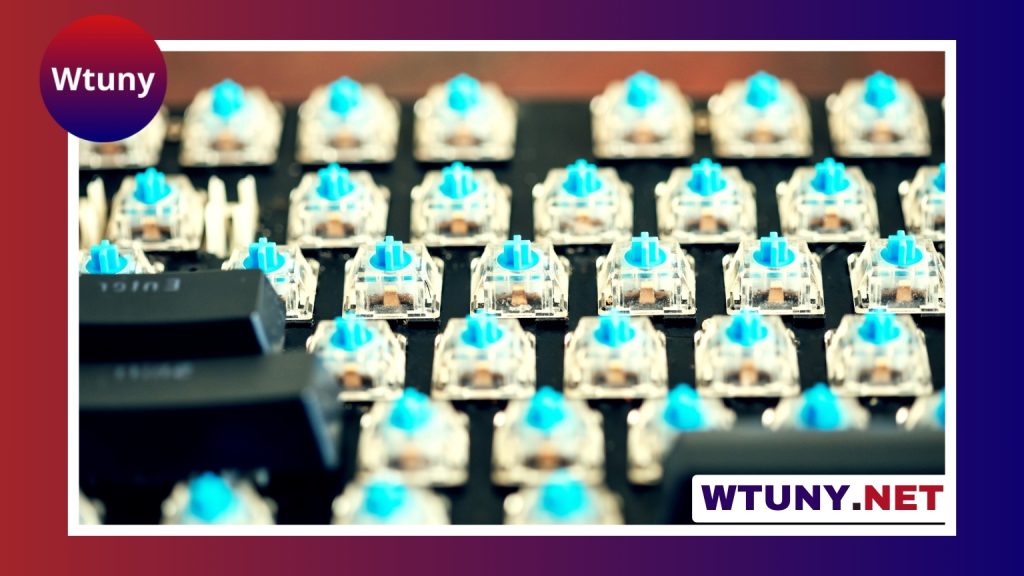
- Noise and feel: Mechanical keyboards provide noticeable key feedback, whereas membrane keyboards are often quieter and less expensive.
For the mouse, reliable tracking and comfortable shape are more important than a very high specification. Sensitivity preferences differ, so adjustable sensitivity can be useful when the game supports it. If you play for long periods, choose a mouse that feels comfortable in your hand and does not force an awkward wrist position.
Using an adapter
Some players use an input adapter to translate keyboard and mouse actions into controller commands in games without native support. These devices can require key mapping, sensitivity adjustments, and calibration before they feel natural. Follow the adapter manufacturer’s setup instructions and check its compatibility information before buying.
Take care when using an adapter in online multiplayer. A game, league, or tournament may have rules about third-party input devices. Review the relevant terms and competition rules before using one, particularly in competitive matches.
Troubleshooting connection problems
If the PS4 does not recognise a USB keyboard or mouse, try the following steps:
- Disconnect and reconnect the device.
- Try another USB port on the console.
- Test a different keyboard or mouse to determine whether the issue is device-specific.
- Restart the PS4 and check whether its system software is up to date.
- If you are using an adapter, repeat its mapping or calibration process.
A powered USB hub may help when several devices are needed, but connect the keyboard and mouse directly to the console first when diagnosing a problem. This creates a simpler setup and makes it easier to identify the source of connection drops.
Is a USB keyboard and mouse right for your PS4?
Keyboard and mouse input is particularly useful for players who type often, manage large inventories, use text chat, or prefer a desk-and-monitor arrangement. Even if your favourite game does not support mouse control, a USB keyboard can still make messages and searches faster.
For the most reliable basic setup, start with a compatible wired keyboard and mouse, then confirm each game’s control support before making additional purchases. This approach avoids assuming that every PS4 title will offer the same level of keyboard-and-mouse functionality.