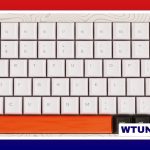
The space bar is often the largest and most frequently used key on a keyboard, yet it receives less attention than switches, layouts, or keycap sets. Its size, shape, stabilizers, and programming can significantly affect typing comfort and everyday workflow. Whether you use a traditional full-size keyboard, a compact mechanical board, or a split ergonomic design, the right space bar setup can make the keyboard feel more natural and predictable.
Why the space bar matters
Most people use the space bar thousands of times during ordinary typing. Because it is operated by the thumbs, its position influences hand posture, reach, and the way the hands remain anchored near the home row. A bar that feels unstable, overly stiff, or poorly positioned can become noticeable during long writing or programming sessions.
The space bar may also have functions beyond inserting a space. On programmable keyboards, it can act as a layer key, modifier, or shortcut when held down, while a normal tap continues to insert a space. This allows users to access numbers, navigation commands, media controls, or other functions without moving their hands far from the primary typing area.
How layouts change the space bar
Keyboard size and layout determine both the physical space bar and the keys surrounding it. A full-size or tenkeyless keyboard generally provides a familiar long bar with a conventional thumb position. Compact layouts reduce or rearrange keys, which can bring modifiers and function layers closer to the thumbs.
Smaller boards may use a shorter space bar, split space keys, or several thumb keys in its place. A split ergonomic keyboard might provide separate left and right space keys, allowing one thumb to handle spacing while the other controls a layer, backspace, or another frequently used command. These arrangements can reduce thumb travel, but they require adjustment if you are accustomed to a standard layout.
Space bar size and compatibility
Space bar dimensions are commonly described in keyboard units, written as “u.” A widely used traditional size is 6.25u, but compact and custom keyboards may use 6u, 5.5u, or two smaller keys. The exact size affects where the thumb lands and whether a replacement keycap will fit the keyboard’s mounting points.
Before buying a replacement space bar or keycap set, check the keyboard’s layout, keycap size, stabilizer spacing, and switch positions. A keycap that appears visually suitable may not be compatible with the underlying plate or PCB. Custom keyboards can vary considerably, so the manufacturer’s layout diagram is more reliable than assuming a standard arrangement.
Stabilizers and the feel of a long bar
Long space bars normally use stabilizers to keep both ends moving together. Well-adjusted stabilizers produce a consistent press across the length of the key and help prevent excessive wobble. Poorly adjusted parts can cause rattling, uneven resistance, or a key that feels different depending on where it is pressed.
On mechanical keyboards, stabilizers can often be serviced by cleaning, lubricating, or replacing compatible components. Work carefully and confirm the stabilizer type before modifying it. If you are not comfortable disassembling the keyboard, choosing a well-assembled replacement or having the work done by an experienced technician may be preferable.
Keycap shape and material
The space bar should feel comfortable under the thumb and sit naturally within the keycap profile. Sculpted profiles may follow the shape of the surrounding rows, while flatter designs can provide a more uniform surface. Low-profile keyboards usually have shorter key travel and a thinner keycap design, creating a different feel from a conventional mechanical board.
Keycap material also changes the experience. ABS keycaps often have a smooth surface and may develop a polished appearance with heavy use. PBT keycaps generally have a more textured feel and are commonly chosen for their resistance to visible wear. Since the space bar receives frequent contact, these differences can become especially apparent over time.
Choosing a space bar setup
Start with the way you use the keyboard rather than focusing only on the bar’s appearance:
- For extended writing: prioritize a comfortable thumb position, consistent movement, and a space bar that does not require excessive force.
- For compact or portable keyboards: consider whether a shorter or split arrangement provides useful thumb access without causing accidental presses.
- For programming and shortcuts: a programmable space key or thumb layer can reduce hand movement and make less common functions easier to reach.
- For gaming: a predictable, easy-to-hit bar may be more important than extensive remapping options.
- For ergonomic experiments: be prepared for a period of retraining when moving from one large bar to split or dual space keys.
When testing a keyboard, pay attention to thumb strain, accidental activations, rattling, and whether the bar feels consistent from left to right. A space bar that looks conventional may still feel very different because of its stabilizers, switch design, keycap profile, or surrounding layout.
Final considerations
The space bar is a small part of the keyboard, but it has an outsized effect on comfort and control. Its length, mounting arrangement, surface shape, and programmable functions all influence how naturally the keyboard fits your hands. A standard long bar remains a practical choice for many typists, while split and multi-function designs can offer useful alternatives for people willing to adapt.
Understanding the space bar before replacing keycaps or choosing a new keyboard helps prevent compatibility problems and makes it easier to select a setup suited to your typing habits.