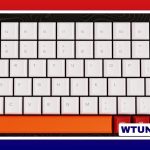
The right keyboard can make a long day of writing, spreadsheet work, and email more comfortable and efficient. Rather than choosing by brand name alone, focus on how the keyboard fits your tasks, workspace, typing preferences, and posture. A good Microsoft Office keyboard should help you work smoothly in Word, Excel, Outlook, and other everyday applications without creating unnecessary strain.
Start with your everyday workflow
The most useful features depend on what you do most often. Someone who enters figures all day has different priorities from a writer who mainly edits documents or a remote worker who switches between a laptop and a desktop.
- Data entry and spreadsheets: A full-size keyboard with a dedicated numeric keypad can make number entry more convenient.
- Writing and editing: Comfortable key spacing, dependable feedback, and quiet operation may matter more than extra controls.
- Email and administration: Easy access to navigation, search, copy, paste, and other frequently used commands can reduce interruptions.
- Hybrid or remote work: Wireless or compact designs may be useful when desk space and portability are important.
Make a short list of the actions you repeat most often. That list is more useful than choosing a keyboard simply because it has the longest feature list.
Features worth considering
Layout and numeric keypad
A full-size layout includes the function row, navigation keys, and numeric keypad. It is a practical choice for accounting, budgeting, and spreadsheet-heavy work. A tenkeyless keyboard removes the numeric section, leaving more room for the mouse and potentially allowing a closer arm position. Compact keyboards save still more space, but may combine or omit keys that you use regularly.
Key feel and noise
Keyboard switches affect both comfort and sound. Mechanical, scissor-switch, and membrane keyboards can all suit Office work; the best option depends on the feedback you prefer and the environment in which you type. Writers working near colleagues may favor quieter keys, while users who like pronounced tactile feedback may prefer a more responsive feel. If possible, try a keyboard for an extended session rather than judging it after a few minutes.
Shortcut and programmable keys
Dedicated controls for common actions such as copy, paste, save, or search can reduce reliance on menus. Some keyboards also allow keys to be remapped or assigned to macros. This can be helpful for repeated actions, such as inserting a standard phrase, launching a template, or applying a recurring formatting sequence.
Customization is most valuable when it reflects your actual work. A large number of programmable keys is not automatically useful if they are difficult to remember or placed where they can be pressed accidentally.
Connectivity and software support
Wired USB keyboards avoid battery management and are straightforward to connect. Bluetooth and wireless receiver models can create a cleaner desk and make it easier to move the keyboard between work areas. Check that the connection method suits your computer and that any configuration software supports the operating system and features you intend to use. Office users who travel often may prefer a compact foldable keyboard for improved typing and portability.
Ergonomics for longer work sessions
A keyboard cannot correct every workstation problem, but its shape and position can influence how your hands, wrists, arms, and shoulders feel during the day. Look for a layout and height that allow your wrists to remain relatively neutral rather than sharply bent. Adjustable tilt can help you find a more comfortable position, although a raised rear edge is not automatically better for everyone.
Curved, split, or tented layouts may suit users who want to change the angle of their hands. A wrist rest can provide support when it is used lightly and does not force the wrists upward. If a keyboard feels uncomfortable, adjust its position and your chair and desk height before deciding that you need a different design.
A compact keyboard can also change mouse placement. By removing the numeric keypad, it may allow the mouse to sit closer to the body, which some users find more comfortable. On the other hand, choosing a compact model is unlikely to be worthwhile if you frequently need dedicated number keys.
Set up shortcuts thoughtfully
If the keyboard includes configuration software, install it only when you need its remapping or macro features. Start with a few high-value shortcuts instead of changing every key. Application-specific profiles can be useful when the same key should perform different actions in Word, Excel, Outlook, or PowerPoint.
Test each shortcut in the applications you use before relying on it. Keep a simple record of custom mappings, particularly if more than one person uses the workstation or if you move between computers. Avoid assigning complicated commands to keys that are easy to press accidentally.
Choose for sustained comfort, not a specification sheet
The best Microsoft Office keyboard is the one that matches your work and remains comfortable over a full session. Consider the layout, key feel, noise, connectivity, customization options, and the amount of desk space available. Build quality and a suitable return policy can also matter because comfort is difficult to judge from specifications alone.
Once the keyboard is installed, spend time adjusting its position and learning the shortcuts you will genuinely use. A well-matched keyboard will not replace good posture or regular breaks, but it can make routine Office work feel smoother and less tiring.