A mechanical keyboard with media keys combines the tactile feel and durability of mechanical switches with quick, physical control over audio and playback. Instead of opening a media player, reaching for a system tray, or interrupting a game to change settings, you can adjust volume, mute sound, pause playback, or skip tracks directly from the keyboard.
These controls are useful in many setups, from home offices and gaming desks to streaming and content-creation workstations. The best choice depends on how often you use media functions, how much desk space you have, and whether you want simple dedicated buttons or fully programmable controls.
Why choose a keyboard with media controls?
Dedicated media controls reduce small interruptions during everyday computer use. A physical volume wheel can make a quick adjustment easier than locating an on-screen slider, while a mute button can be useful during calls, games, or music playback. Because the controls are separate from the main typing area, they can usually be operated without taking your hands far from the keyboard.
Media keys are particularly helpful for:
- Gamers: Adjust volume or mute audio without leaving the game window.
- Office users: Control music, video, or call audio while working.
- Streamers: Trigger audio actions or other mapped commands during a broadcast.
- Video and audio creators: Assign playback, timeline, or shortcut functions to programmable controls.
Common layouts and control styles
Full-size mechanical keyboards often have enough room for a dedicated media cluster, usually positioned above the number pad or near the function keys. These models may include separate buttons for play and pause, track navigation, mute, and volume adjustment.
Tenkeyless and compact keyboards save desk space by removing the number pad or reducing the number of dedicated keys. On these layouts, media commands may be accessed through an Fn layer, which means holding Fn while pressing another key. This keeps the keyboard compact, but it is less immediate than using separate buttons.
Some keyboards combine a small group of media buttons with a rotary volume encoder. Others use a single encoder that can be pressed to mute audio and rotated to change volume. If frequent, fine-grained volume adjustments are important to you, a physical knob is often more convenient than repeated key presses.
Dedicated buttons versus programmable controls
Dedicated buttons are straightforward and generally require little setup. Basic functions such as volume, mute, play, pause, and track selection may work through standard operating-system commands. This makes them suitable for users who want convenience without configuring software.
Programmable controls offer more flexibility. Depending on the keyboard and its firmware, a knob, macro key, or media button may be reassigned to launch an application, control a streaming tool, move through a timeline, or perform another shortcut sequence. Keyboards that support QMK or VIA-style configuration can provide layers and remapping options, although setup may require more technical involvement than a conventional driver utility.
Switches, construction, and everyday comfort
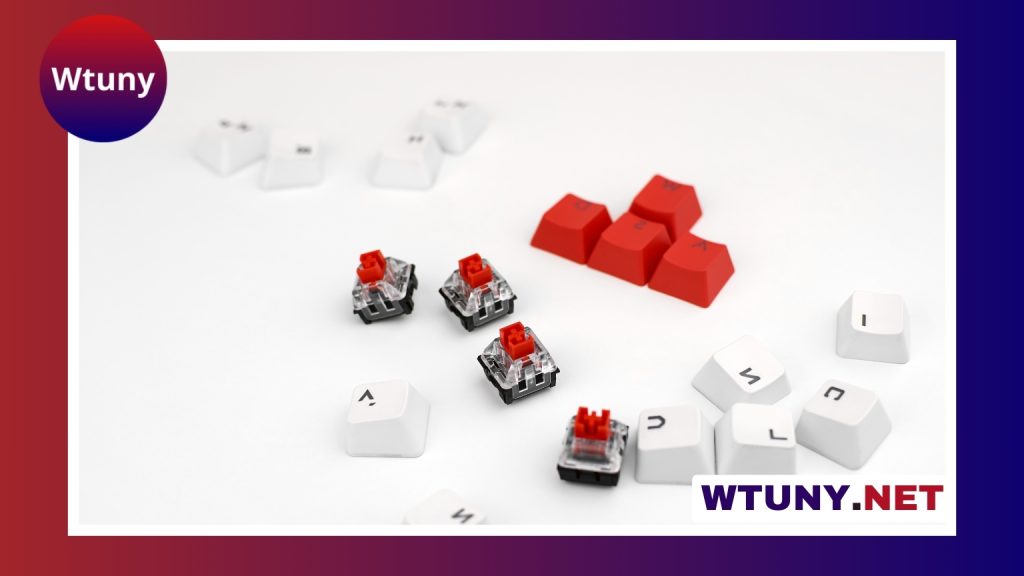
Media controls do not determine the typing feel of the rest of the keyboard, so switch selection remains important. Linear switches provide smooth, consistent movement. Tactile switches add a noticeable bump, while clicky switches provide both tactile feedback and a louder sound. Your choice should reflect your preferred typing experience and the environment in which you use the keyboard.
Build quality also matters when a keyboard includes a frequently used volume wheel or media cluster. A stable encoder should turn smoothly without excessive wobble, and media buttons should feel solid rather than loose. A rigid case, dependable stabilizers, and comfortable keycaps can improve the overall experience, especially during long work or gaming sessions.
Compatibility and wireless considerations
Standard media commands commonly work across major desktop operating systems, but advanced functions may depend on manufacturer software or custom firmware. Before buying, check whether the configuration tools support your operating system and whether remapped commands are stored on the keyboard or require background software.
For wireless models, consider both connection methods and media-key behavior. Bluetooth and 2.4GHz connections may suit different desks and devices, while battery life can vary depending on the keyboard’s features and usage. If you rely on programmable media functions, confirm that those functions work in the connection mode you plan to use.
What to check before buying
- Layout: Decide whether you want full-size, tenkeyless, or compact dimensions.
- Control access: Choose dedicated buttons for immediate access or Fn layers to save space.
- Volume adjustment: Look for a rotary encoder if smooth, frequent volume changes matter.
- Customization: Check for remapping, macros, layers, and compatible configuration software.
- Typing feel: Select linear, tactile, or clicky switches according to your preferences.
- Construction: Examine the stability of the case, keys, and media controls.
- Connectivity: Verify wired, Bluetooth, or 2.4GHz support and how each mode handles media commands.
A mechanical keyboard with media keys can be a practical upgrade when audio and playback controls are part of your regular workflow. Full-size boards offer the most direct access, compact models preserve desk space, and programmable designs can adapt to specialized tasks. By balancing layout, switch feel, control quality, firmware support, and connectivity, you can choose a keyboard that makes media management faster without adding another device to your desk.