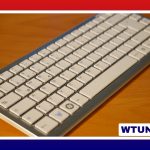
A Magic Trackpad and keyboard make a clean, flexible alternative to the traditional mouse-and-keyboard arrangement. The combination is especially appealing to Mac users who rely on gestures, move between workspaces frequently, or want a compact setup without giving up a full-size typing experience.
Apple’s accessories are the most obvious pairing, but they are not the only option. A third-party keyboard can work well with a Magic Trackpad, and some users may prefer to keep a mouse nearby for tasks that demand precise pointer control. The best arrangement depends on your workflow, comfort, and the way you use your Mac.
Why pair a Magic Trackpad with a keyboard?
The two devices serve different purposes without competing for space. The keyboard provides a stable surface for writing, coding, editing, and shortcuts, while the trackpad handles navigation and multi-finger gestures. This division can feel more natural than using a Magic Mouse for everything, particularly when switching between full-screen apps, browsing long pages, or moving windows around the desktop.
A Magic Trackpad also provides a larger gesture area than the trackpad built into a MacBook. Depending on your macOS settings and the applications you use, gestures can support actions such as scrolling, zooming, app switching, and dragging. Users who already navigate a MacBook with gestures generally need little time to adapt to the larger external surface.
Apple Magic Keyboard and Magic Trackpad features
The Apple pairing has a consistent appearance and is designed with Mac layouts and shortcuts in mind. The Magic Keyboard uses a low-profile design that offers a firm, quiet typing experience, while the Magic Trackpad provides a broad glass surface for touch input. Both can connect wirelessly, and they can also be connected by cable while charging, depending on the model and connector available.
Keyboard layouts vary. A compact version leaves more room for the trackpad and other desk equipment, while an extended version with a numeric keypad can be useful for spreadsheets, finance work, and frequent number entry. Before buying, check the layout carefully, including the position of modifier keys and whether you need dedicated navigation or numeric keys.
Pairing and compatibility
On a Mac, pairing is handled through the system’s Bluetooth settings. After the initial connection, both devices should be available whenever they are switched on and charged. macOS also provides settings for adjusting trackpad behavior, including tap actions, click response, and gesture preferences.
The experience is most complete within the Apple ecosystem. A Magic Trackpad and keyboard can also be useful with other compatible Apple devices, although available gestures and features may differ between macOS and iPadOS. If you regularly move accessories between devices, consider how often you will need to reconnect them and whether the keyboard supports convenient device switching.
Magic Trackpad versus Magic Mouse
The choice between a Magic Trackpad and Magic Mouse is largely a matter of control style. A mouse offers a physical pointer device that many people prefer for precise selection, detailed design work, or extended cursor movement. A trackpad, by contrast, makes multi-finger gestures more central to navigation and can be comfortable for users who prefer touch-based control.
There is no need to treat the choice as permanent. A common approach is to use the trackpad for everyday macOS navigation and keep a mouse available for precision work. This hybrid setup can be useful for design applications, detailed spreadsheet work, or any task where a physical mouse feels more predictable.
Third-party keyboards worth considering
A Magic Trackpad does not require an Apple keyboard. The most suitable alternative depends on typing feel, layout, and ergonomics:
- Mechanical keyboards: Models from brands such as Keychron and Varmilo can provide stronger tactile feedback and more opportunities for customization. Some wireless models are designed with Mac layouts in mind.
- Compact wireless keyboards: These preserve desk space around the trackpad and are convenient for small work areas or portable setups.
- Full-size keyboards: A larger layout may be preferable if you regularly use a numeric keypad or dedicated navigation keys.
- Ergonomic keyboards: Split or tented designs from companies such as Kinesis and Microsoft may suit users who find a flat keyboard uncomfortable.
- Multi-device keyboards: Logitech and other manufacturers offer keyboards that can connect to more than one device, which is useful when sharing a keyboard between a Mac and another computer.
Comfort, desk layout, and maintenance
Position the keyboard and trackpad so you can use both without reaching or repeatedly twisting your wrist. The trackpad should be close enough for easy access, but not so close that it crowds the keyboard or forces your hands into an awkward angle. Because the Magic Trackpad has a flat profile, some users may prefer a stand or angled support. Others may find that keeping the keyboard flat is more comfortable than adding a wrist rest.
Battery life varies by device, model, and usage. Rechargeable Apple accessories need periodic charging, while third-party keyboards may use built-in batteries or replaceable cells. Keep the trackpad surface and keyboard clean so clicks, taps, and gestures remain consistent, and remember to check connector compatibility before purchasing charging cables or accessories.
Choosing the right setup
Choose the Apple keyboard and Magic Trackpad combination if you value a coordinated design, straightforward Mac integration, and extensive gesture use. Choose a third-party keyboard if typing feel, programmability, ergonomics, or a particular layout matters more than visual consistency. If your work includes precision-heavy tasks, adding a mouse can provide useful flexibility.
The strongest setup is the one that reduces friction throughout the day. Consider your main applications, typing preferences, desk dimensions, charging habits, and need for portability before deciding between a Magic Trackpad and keyboard, a Magic Mouse and keyboard, or a combination of all three.