
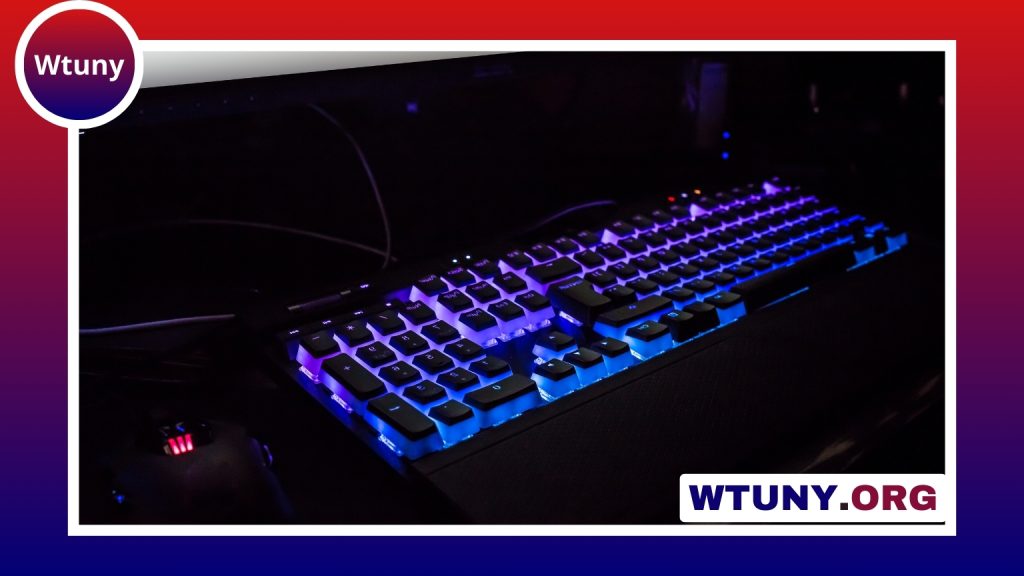
Keyboard key placement influences how comfortably and efficiently you type, play games, write code, or enter numbers. The differences may seem minor—an Enter key with a different shape, a shorter Shift key, or a missing navigation cluster—but they can affect muscle memory, hand position, and the amount of reaching required during everyday use.
Why key placement matters
A keyboard’s layout determines where your fingers travel for commonly used letters, modifiers, punctuation, and navigation commands. A well-matched arrangement can make frequently repeated actions feel more natural, while an unsuitable one may lead to awkward reaches or frequent mistakes.
Placement is especially important when:
- You type for long periods and want to limit unnecessary wrist or finger movement.
- You play games that depend on quick access to movement, utility, or macro keys.
- You write code and regularly use brackets, braces, punctuation, and modifier combinations.
- You enter figures and need a dedicated numeric keypad.
- You use assistive or ergonomic equipment and need controls positioned within a comfortable reach.
Standard keyboard layouts
Most keyboards use a familiar staggered letter arrangement, but the physical dimensions and positions of several keys vary by regional standard. The three layouts most often encountered are ANSI, ISO, and JIS.
- ANSI: Commonly uses a wide rectangular Enter key and a long left Shift key.
- ISO: Typically has a taller, two-row Enter key and a shorter left Shift key, with an additional key near that area.
- JIS: Uses a layout designed for Japanese input and may include additional keys and different key dimensions.
These distinctions matter when replacing keycaps or building a keyboard. A keycap set may support the correct letter legends but still lack the unusual sizes needed for a particular Enter, Shift, spacebar, or bottom-row arrangement. Check a physical layout diagram before buying replacement parts.
Keyboard sizes and what they remove
Keyboard size changes key placement by removing or combining groups of keys. A full-size keyboard includes the main typing area, function row, navigation cluster, arrow keys, and numeric keypad. Other formats reduce the footprint:
- Tenkeyless (TKL): Removes the numeric keypad while keeping the function and navigation sections. This leaves more desk space and can bring the mouse closer to the typing area.
- 75 percent: Compresses the navigation keys and function row into a smaller arrangement while retaining many dedicated controls.
- 60 percent: Removes the function row, navigation cluster, and arrow-key block as separate sections. These commands are usually accessed through a function layer.
- Compact or custom layouts: May rearrange or combine keys to reduce width and support a specific workflow.
Smaller boards are easier to carry and can free desk space, but they require more key combinations or layers. If you frequently use arrows, F-keys, navigation commands, or a number pad, verify how those functions are accessed before choosing a compact model.
Ergonomic and alternative arrangements
Traditional keyboards use staggered rows, partly because of the mechanical design of older typewriters. Modern alternatives change that arrangement to reduce reaches or better match hand position.
Ortholinear keyboards
Ortholinear boards place keys in straighter columns and rows rather than using the familiar horizontal stagger. Some typists find this reduces sideways movement, although the layout requires time to learn.
Split keyboards
Split designs separate the left and right halves so each hand can be positioned independently. Depending on the model, the halves may also be angled or tented. This can make it easier to adjust shoulder and wrist alignment, but the best position depends on the user and the rest of the workstation.
Thumb clusters
Ergonomic keyboards often move frequently used commands—such as Space, Backspace, Enter, or layer keys—to thumb clusters. This gives the thumbs more responsibility and can reduce reliance on the pinky fingers for modifiers. The arrangement should be judged during realistic typing rather than by appearance alone.
Choosing placement for different tasks
There is no single ideal layout for every activity. Gamers may value the spacing of movement keys, nearby number-row commands, dedicated macro buttons, or easy-to-reach media controls. Programmers may prefer convenient access to brackets, braces, quotes, punctuation, and modifier keys. Numeric data entry generally benefits from a full-size keyboard or a separate numpad.
Before choosing a board, list the commands you use most often. Then check whether they are dedicated keys, placed near the home position, or hidden behind a layer. This practical approach is more useful than selecting a layout solely because it is compact or visually distinctive.
Remapping and learning a new layout
Software remapping and programmable firmware can change what a key does without changing its physical position. Start with a small number of changes, such as moving a modifier or creating a more convenient arrow-key layer. Large changes are possible, but they take longer to become automatic.
- Keep a printed diagram or on-screen reference nearby while learning.
- Change one group of related keys at a time.
- Use typing practice that reflects your real work, including punctuation and shortcuts.
- Keep important modifiers in similar locations across devices when you switch keyboards often.
- Design layers so commonly used commands do not require uncomfortable combinations.
Keycap height and profile also affect how placement feels. A low-profile design may reduce the apparent height of a compact board, while sculpted keycaps can guide the fingers across staggered rows. Switch type changes key feel and force, but it does not correct a layout that places essential commands too far away.
How to evaluate a keyboard layout
Start with a layout chart, confirm compatibility with your operating system and keycap set, and consider the commands you use throughout a normal day. Pay attention to hand position, reach distance, layer combinations, and whether the keyboard includes the keys your work requires. The most effective arrangement is the one that supports your habits with minimal unnecessary movement—not necessarily the smallest or most heavily customized option.






