A keyboard and mouse can make Steam Deck feel much closer to a compact desktop PC. They are useful for games that depend on precise aiming, many hotkeys, or text entry, and they also make browsing, chatting, file management, and other desktop tasks more comfortable. The best setup depends on whether you mainly play at a desk, use the Deck in tabletop mode, or carry it while travelling.
Why connect a keyboard and mouse?
Steam Deck controls work well for many games, but some genres benefit from traditional PC input. Strategy games, massively multiplayer games, real-time strategy titles, and PC ports with extensive keyboard shortcuts can be easier to manage with dedicated peripherals. A mouse can also provide more precise cursor control or aiming in games that support it.
Keyboard input is equally useful outside games. Typing messages, searching the web, editing documents, and navigating desktop applications is generally faster with a physical keyboard than with the Deck’s on-screen keyboard. When connected to a monitor, the Steam Deck can serve as a compact workstation for light productivity tasks.
Choose a connection method
There are three common ways to connect peripherals: USB, Bluetooth, and a wireless receiver.
- USB: A wired keyboard or mouse offers a straightforward connection and does not require separate battery management. Because the Steam Deck uses USB-C, you may need a dock, hub, or USB-C adapter to connect USB-A accessories.
- Bluetooth: Bluetooth keyboards and mice reduce cable clutter and work well for tabletop play, couch use, and travel. They do require pairing and battery management, and the specific peripheral must be compatible with the Steam Deck’s software environment.
- Wireless receiver: A keyboard-and-mouse set using one USB receiver can provide a tidy setup without running cables across your desk. The receiver usually connects through a dock, hub, or adapter.
A dock or USB hub is especially useful when you want to connect several devices at once, such as a keyboard, mouse, monitor, headset, or external storage. If you regularly switch between handheld and docked use, Bluetooth or a single wireless receiver can reduce the amount of reconnecting required.
What to look for in a Steam Deck keyboard
Keyboard size should match the way you use the device. A 60-, 65-, or 75-percent layout takes up less room and is easier to carry or position beside the Deck in tabletop mode. A tenkeyless or full-size keyboard provides more familiar spacing and may be more comfortable for long sessions at a desk, particularly if you use the number pad for work or game commands.
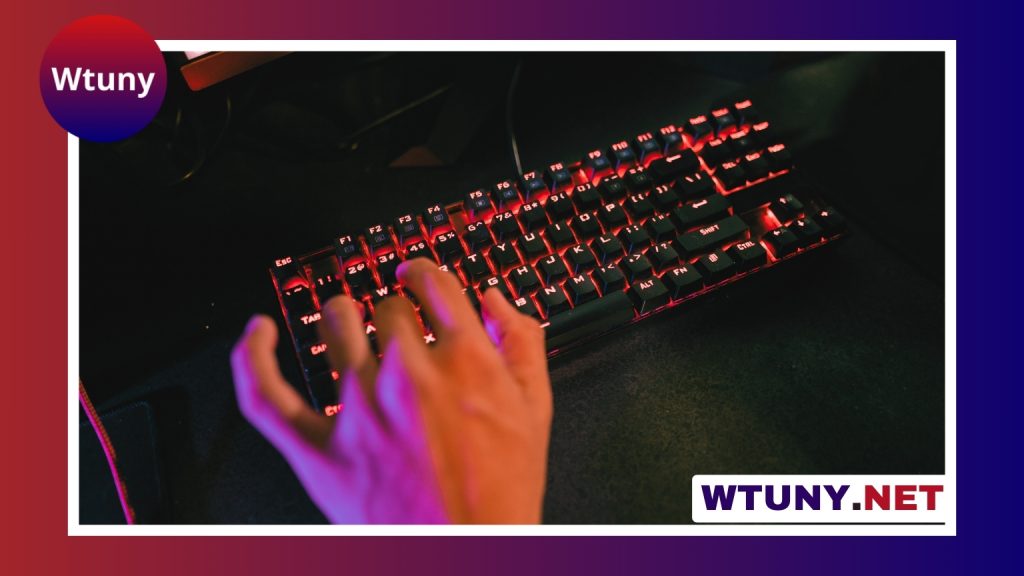
Switch type is another important consideration. Mechanical keyboards provide distinct key feedback and are popular for gaming, while low-profile and scissor-switch models are often thinner, quieter, and easier to transport. Backlighting can help in dim surroundings, but it may increase power use on wireless models. Programmable keys can be useful for games with many commands, although their value depends on whether the game and configuration software support the desired bindings.
For a portable setup, also consider weight, cable length, folding mechanisms, and whether the keyboard can operate in wired mode when its battery is low. For a permanent desk setup, comfort, key spacing, and wrist position are usually more important than minimum size.
Choosing the mouse
A compact travel mouse is convenient for browsing and occasional gaming, while a larger wired or wireless gaming mouse may be more comfortable for extended sessions. Consider the shape, sensitivity controls, scroll wheel, and the amount of desk space available. A mouse pad is helpful on surfaces where optical tracking is inconsistent.
For competitive or precision-focused games, a wired mouse can simplify setup and avoid wireless battery concerns. For casual play and general desktop use, Bluetooth or receiver-based models can keep the workspace cleaner.
Useful setup ideas
- Tabletop setup: Use a compact Bluetooth keyboard and mouse when the Deck is propped up nearby. This works well for strategy games, browsing, and short typing sessions.
- Desk setup: Connect a monitor, full-size or tenkeyless keyboard, and comfortable mouse through a dock or hub. This is the most practical arrangement for longer gaming or productivity sessions.
- Travel setup: Pair a foldable or slim keyboard with a small travel mouse. This keeps the kit portable while providing more comfortable typing than the on-screen keyboard.
- Low-latency setup: Use wired peripherals or a wireless receiver connected to a nearby hub when consistent input is a priority.
Configure controls and troubleshoot input
Games with native keyboard-and-mouse support may work immediately, but other titles may need configuration. Steam Input can be used to create custom layouts, map keyboard keys to controller actions, or combine mouse movement with other inputs. The available options vary by game, so test the layout before starting a long session.
Bluetooth devices can be paired through the Steam Deck’s desktop environment. If a device does not reconnect reliably, remove its saved pairing and pair it again, check that it is charged, and make sure it is not actively connected to another computer or tablet. For receiver-based accessories, place the receiver in the dock or hub rather than at the far end of a long cable where possible.
Wireless accessories may draw additional power from the Deck, especially when backlighting is enabled. Lowering brightness, using sleep settings, and switching off peripherals when finished can help extend battery life. Firmware updates may also improve reliability, but use the manufacturer’s instructions and confirm that the update process supports your operating system.
Prioritise comfort as well as compatibility
The smallest keyboard is not always the best one. Check that the layout has the keys you use most, that the mouse fits your hand, and that your wrists remain in a neutral position. A compact keyboard with sensible spacing or a detachable wrist rest can be more comfortable than an ultra-small model during longer sessions.
With the right combination of connection type, layout, and controls, a keyboard and mouse can expand what the Steam Deck is comfortable doing without removing its portability. Choose peripherals around your main use—gaming, desktop work, travel, or a mixture of all three—and test the final arrangement before committing to a more elaborate setup.