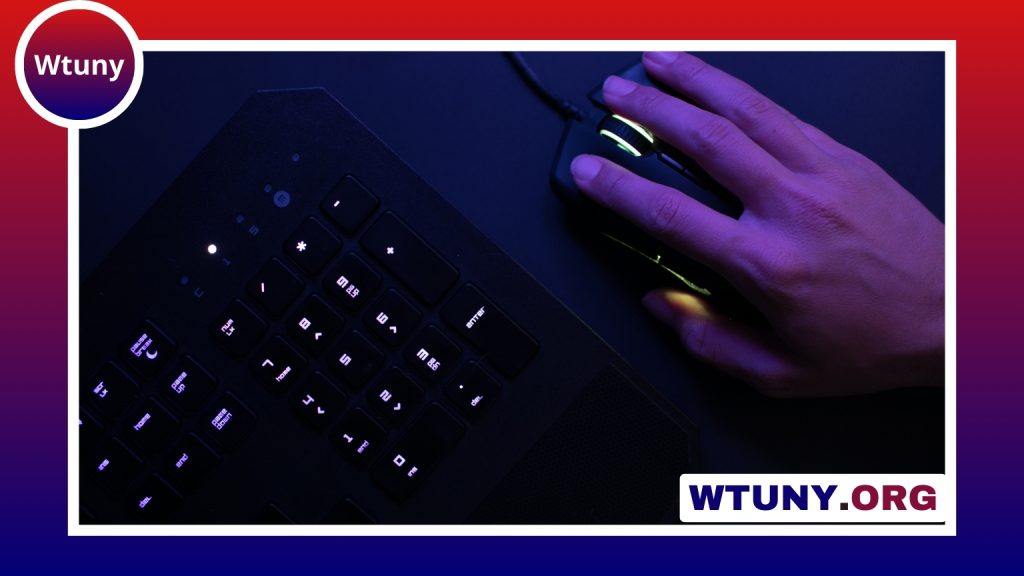
A ball keyboard combines a conventional typing layout with a built-in trackball. Instead of moving a separate mouse across the desk, you control the pointer by rolling a fixed ball with your thumb, finger, or palm. This design can simplify a workstation, reduce the need to reach sideways, and provide an alternative for people who find a standard mouse uncomfortable.
What is a ball keyboard?
In this context, “ball keyboard” refers to a keyboard with an integrated pointing ball, commonly called a trackball. The ball remains in a fixed housing while your hand moves it in any direction. Buttons near the ball provide the usual pointing-device functions, and some designs also include a scroll control or configurable inputs.
Trackball placement varies. A centrally positioned ball may allow either hand to operate it, while left- and right-sided layouts are designed around a particular hand. The location affects how easily you can switch between typing and pointer control, so it is one of the most important features to assess before buying.
Why choose a keyboard with an integrated trackball?
The main practical advantage is reduced movement between input devices. With a separate mouse, users repeatedly move one hand away from the keyboard and across the desk. A built-in trackball keeps pointing control in the same general area, which may help reduce reaching and make a compact desk easier to manage.
These keyboards can also be useful when desk space is limited or when carrying a separate mouse is inconvenient. They may suit shared workstations, hotdesking setups, small offices, and environments where a simpler cable arrangement is desirable.
Ergonomic comfort is personal, however. A ball keyboard does not automatically correct poor posture or eliminate wrist and arm discomfort. Its benefits depend on the keyboard’s design, your hand position, your work habits, and how well the device suits you.
Who might benefit from one?
A ball keyboard can be worth considering if your work involves frequent switching between typing and pointing. Possible use cases include:
- Office tasks that combine text entry, form completion, and navigation.
- Data, administrative, or customer-support work performed in compact desk areas.
- Creative or technical applications that require pointer control without constant mouse movement.
- Shared workspaces where reducing the number of separate peripherals is useful.
- Users who find extended mouse reaching uncomfortable or prefer keeping both hands closer to the keyboard.
People with specific pain, mobility, or accessibility needs should treat the device as one option to test rather than assume it will be suitable. A short trial can reveal whether the ball’s position, resistance, and required hand movements work for you.
Features to compare before buying
Trackball position and control
Check whether the ball is central, left-sided, or right-sided. Consider which finger or part of your hand will operate it and whether you can reach the buttons without stretching. Ball size, movement smoothness, scrolling controls, and the ease of cleaning the housing also matter. If you enjoy the Ball Keyboard’s playful design, explore retro typing options featuring wireless convenience and classic typewriter styling.
Keyboard layout and key feel
Look for a layout that matches your normal typing habits. A familiar arrangement can make the transition easier, while unusual spacing or tightly grouped keys may slow you down. Keyboards may use softer membrane keys or more tactile mechanical switches; noise, feedback, and typing preference should guide this choice.
Connectivity and configuration
Wired models provide a straightforward connection and do not require battery management. Wireless models can reduce cable clutter and make repositioning easier. If you depend on shortcuts, check for programmable keys, macro support, adjustable pointer sensitivity, button remapping, and application profiles.
Also verify operating-system compatibility and whether configuration software is required. A device may function for basic typing and pointing without extra software, while advanced settings may depend on a supported driver or utility.
Setting up a ball keyboard comfortably
Place the keyboard so your shoulders can remain relaxed and your elbows stay close to your body. Keep your wrists as neutral as possible rather than bending them upward or sideways. Adjust your chair and desk height so your forearms are supported without pressing heavily into the desk edge.
Begin with short sessions if the trackball feels unfamiliar. Your hand will need time to develop new movement patterns, particularly when switching quickly between keys and pointer controls. Adjust sensitivity gradually: a setting that is too low may require excessive rolling, while one that is too high can make precise selection difficult.
A palm rest may help some users, but it should support the heel of the hand without forcing the wrist into an awkward angle. Other workspace adjustments, such as positioning the monitor comfortably and using an adjustable chair, can be just as important as the keyboard itself.
Cleaning and maintenance
Dust and skin oils can affect trackball movement. Follow the manufacturer’s cleaning instructions, and periodically wipe the ball, buttons, and surrounding housing with an appropriate dry or lightly dampened cloth. If the ball is removable, clean the socket carefully and avoid forcing components that are not designed to come out.
In a shared workspace, regular cleaning is especially useful. With the right layout, a ball keyboard can provide familiar typing, nearby pointing control, and a less crowded desk—but its success ultimately depends on choosing a comfortable design and setting it up to match your working style.