
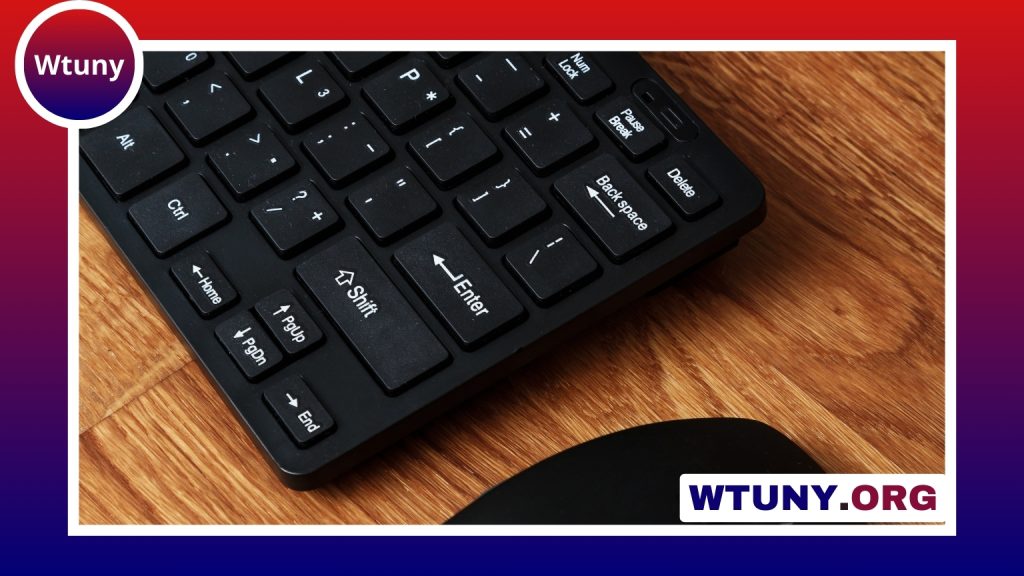
The Windows key on a Logitech keyboard works like the Windows key on most PC keyboards: it opens the Start menu and provides shortcuts for managing windows, locking the computer, switching applications, and more. Although its position is usually familiar, compact, multi-device, and gaming keyboards can place it slightly differently or give it a special lock function. Check Logitech model specifics to confirm whether the Windows key layout varies across mainstream keyboards.
Where is the Windows key on a Logitech keyboard?
On most Logitech keyboards designed for Windows, the Windows key is located along the bottom row of the main key area. It is commonly positioned between the Ctrl and Alt keys, although the exact spacing can vary by layout.
The key normally carries the Windows logo. On compact keyboards, including small Bluetooth models and keyboards with an integrated touchpad, the bottom row may be more tightly arranged. The Windows key is still generally near the left side of the spacebar. Some Logitech keyboards designed for more than one operating system may label the same key with both Windows and Mac symbols.
What the Windows key does
Pressing the Windows key by itself opens the Start menu. Its main advantage, however, is the collection of shortcuts available when it is pressed with another key.
- Windows + L: Lock the computer.
- Windows + D: Show or hide the desktop.
- Windows + Tab: Open Task View and manage windows or virtual desktops.
- Windows + Left Arrow or Right Arrow: Snap the active window to one side of the screen.
- Windows + Up Arrow or Down Arrow: Maximise, restore, or minimise the active window, depending on its current position.
These shortcuts can make everyday tasks faster, especially when arranging multiple windows or moving between workspaces without reaching for the mouse.
Using the Windows key while gaming
An accidental Windows-key press can interrupt a game by opening the Start menu or moving focus away from the game. Many Logitech gaming keyboards therefore include a game mode, Windows-key lock, or another control for disabling the key temporarily.
The control may be a dedicated button, a switch, or a function-key combination, depending on the keyboard. Logitech gaming software may also provide a setting for disabling or changing the key. Check the controls and software options for your particular model before changing the keyboard layout.
When the Windows key does not work
If pressing the key produces no response, work through these checks: Comparing the Windows key layout can clarify how Corsair’s Core keyboard handles familiar shortcuts.
- Check the connection. For a wired keyboard, try another USB port. For a Bluetooth keyboard, confirm that it is paired with the intended computer. If it uses a wireless receiver, make sure the receiver is connected securely.
- Look for a gaming lock. A game mode may have disabled the Windows key without indicating a hardware fault.
- Test another application. A single program may intercept or block shortcuts even when the key works normally elsewhere.
- Try another computer. This helps distinguish a keyboard problem from a Windows setting or software conflict.
- Check remapping utilities. Logitech software, Microsoft PowerToys, and third-party keyboard tools can change what the key sends.
- Use the On-Screen Keyboard. Windows’ built-in keyboard can help show whether the operating system recognises the key press.
Accessibility settings and keyboard customisation tools can also affect shortcut behaviour. If the physical key is sticking, damaged, or unresponsive on more than one computer, the issue may be hardware-related rather than a Windows configuration problem.
Changing or remapping the Windows key
Some Logitech keyboards support customisation through Logitech Options or Logitech G Hub, depending on the product family. Available features may include assigning a different action, disabling the key, or creating application-specific profiles.
For changes that should apply across keyboards, Microsoft PowerToys can remap keys at the Windows level. A remap can be useful when using a multi-operating-system keyboard, adapting a Mac-oriented layout for Windows, or swapping modifier keys to suit a preferred workflow. Keep a note of any changes you make so the original layout can be restored easily.
Multi-device and operating-system layouts
Logitech Bluetooth and multi-device keyboards may switch between Windows and macOS hosts. A hardware selector, operating-system mode, or alternate key label can determine whether the key sends the Windows or Command function. If the key appears to perform the wrong action, verify that the keyboard is set to its Windows mode before troubleshooting the computer itself.
Key placement and available features vary between full-size, compact, low-profile, touchpad, and gaming models. When the layout is unusual, the keyboard’s model documentation is the best way to confirm the intended key combination.
When replacement or support makes sense
Contact Logitech support if the key remains faulty after connection and software checks, particularly when the keyboard is still covered by its warranty. Include the model, purchase information, and the troubleshooting steps already attempted. For an older keyboard with several failing keys or a damaged mechanism, replacement may be more practical than repairing one key.






