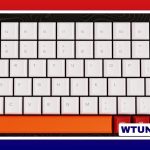
The Logitech MX Keys S Combo for Mac pairs a low-profile, backlit keyboard with a productivity-focused Logitech mouse in a package designed around Apple computers. Its Mac-specific key legends, multi-device controls, and customization options make it appealing to people who move between a MacBook, desktop Mac, or another compatible computer during the day. See Logitech model details for compatibility and configuration tips specific to the MX Keys S Combo for Mac.
This is a premium desktop input setup rather than a basic keyboard-and-mouse kit. The main reasons to consider it are its quiet typing experience, solid construction, macOS-oriented layout, and the convenience of switching between multiple devices.
What the combo includes
The keyboard is the Logitech MX Keys S, a full-size, low-profile model with Mac-oriented legends such as Command and Option. The mouse included in Mac-focused bundles is commonly from Logitech’s MX productivity range, although the exact mouse should be confirmed on the product listing before purchase.
Depending on the package, buyers should also check whether the keyboard includes a numeric keypad, which charging accessories are supplied, and whether a Logi Bolt receiver is included. These details can vary between configurations and are important if you have specific desk or connectivity requirements.
Typing and build quality
The MX Keys S is shaped like a larger desktop version of a premium laptop keyboard. Its slightly dished keycaps help guide the fingers, while the low-profile design keeps key travel modest. The response is quiet and tactile enough for extended writing, coding, office work, and online meetings without producing the louder sound associated with many mechanical keyboards.
A sturdy chassis and aluminum top give the keyboard a substantial feel on the desk. The Mac layout also reduces the adjustment required for users who regularly work on Apple hardware. The function row provides convenient access to common controls such as brightness and media functions, while the backlight helps with visibility in dim rooms.
Backlighting can adjust to the surrounding light and respond when your hands approach the keyboard on supported configurations. Because lighting affects battery use, users who want the longest time between charges may prefer a lower brightness setting or to disable it when it is not needed.
macOS integration and multi-device use
The Mac version is intended to work naturally with macOS, using familiar labels and default behaviors instead of requiring extensive key remapping. The companion mouse may add programmable buttons, gesture controls, and horizontal scrolling, features that can be useful in creative applications, spreadsheets, browsers, and editing timelines. The combo’s Easy Switch controls make it simple to move between your Mac and other paired devices.
Both devices can pair with up to three computers, allowing you to move between systems using dedicated Easy-Switch controls. This is useful for a home office setup that combines a MacBook with a desktop Mac, or for anyone who separates personal and work computers. Logitech’s Flow feature can also support movement between compatible computers, including transferring the pointer and, in supported workflows, copying and pasting content across systems.
Setup and customization
- Charge the keyboard and mouse before extended use.
- Pair them through Bluetooth, or connect the Logi Bolt receiver if your package includes one.
- Install Logitech’s Logi Options+ software on macOS if you want to customize controls.
- Assign application-specific shortcuts, adjust pointer behavior, and configure mouse buttons as needed.
- Check for firmware updates within the Logitech software.
macOS may request Accessibility and Input Monitoring permissions for Logi Options+ to apply button assignments, gestures, and other changes. If customization appears not to work, reviewing those permissions is a sensible first troubleshooting step. In areas with heavy wireless traffic, the Logi Bolt receiver may also provide a more consistent connection than Bluetooth.
Battery life and everyday maintenance
The keyboard is designed to run for weeks between charges under typical use, although frequent or bright backlighting reduces runtime. The mouse likewise provides extended use between charges, with actual endurance depending on how often it is used and how it is configured. Both devices use USB-C charging, making it easier to share cables with other modern equipment.
Keeping the Logitech app and device firmware updated can help address compatibility problems. If you experience brief disconnections, try moving the receiver away from sources of interference, replacing crowded USB ports with a short extension cable, or testing Bluetooth and Logi Bolt separately.
Who should consider it?
- Writers and developers: the quiet keys and comfortable layout suit long typing sessions.
- Remote workers: reduced keyboard noise is helpful during calls and shared workspaces.
- Creative users: programmable mouse buttons, gesture controls, and horizontal scrolling can speed up repetitive actions.
- Multi-device users: switching between up to three computers reduces the need for separate peripherals.
Advantages and limitations
The main advantages are the refined low-profile typing feel, solid construction, Mac-friendly labeling, flexible connectivity, and extensive mouse customization. It is particularly attractive when one desk serves several computers.
The premium price may be difficult to justify for occasional users. People who prefer deep, highly tactile mechanical switches may find the MX Keys S too shallow, while buyers who require a number pad should verify that they are selecting the full-size version. Those who mainly type on the move may also prefer a smaller Bluetooth keyboard.
Final assessment
The Logitech MX Keys S Combo for Mac is best suited to Mac users who want a polished, quiet, and productivity-oriented keyboard-and-mouse setup. Its value comes from the combination of comfortable desktop typing, customizable pointing controls, and straightforward switching between computers. Confirm the exact mouse and keyboard configuration before buying, but for a fixed workspace or multi-Mac workflow, it offers a capable alternative to using separate basic peripherals.