
The keyboard is one of the most important parts of an Asus laptop. Its layout, key feel, shortcuts, and backlighting can affect everything from everyday typing to gaming. Asus uses different keyboard designs across its laptop families, so the best way to maintain, troubleshoot, or replace one is to identify the exact model first.
Keyboard designs across Asus laptop ranges
Asus laptop keyboards vary according to the device’s size, purpose, and price range. Many ZenBook and VivoBook models use a low-profile chiclet layout with scissor-style mechanisms. These keyboards are designed to be relatively quiet and space-efficient, making them suitable for work, study, and travel.
ROG and TUF Gaming laptops may include features aimed at gaming, such as more pronounced tactile feedback, gaming-focused shortcuts, anti-ghosting support, or RGB lighting. Larger laptops commonly include a numeric keypad, while compact 13-inch and 14-inch models usually omit it to save space.
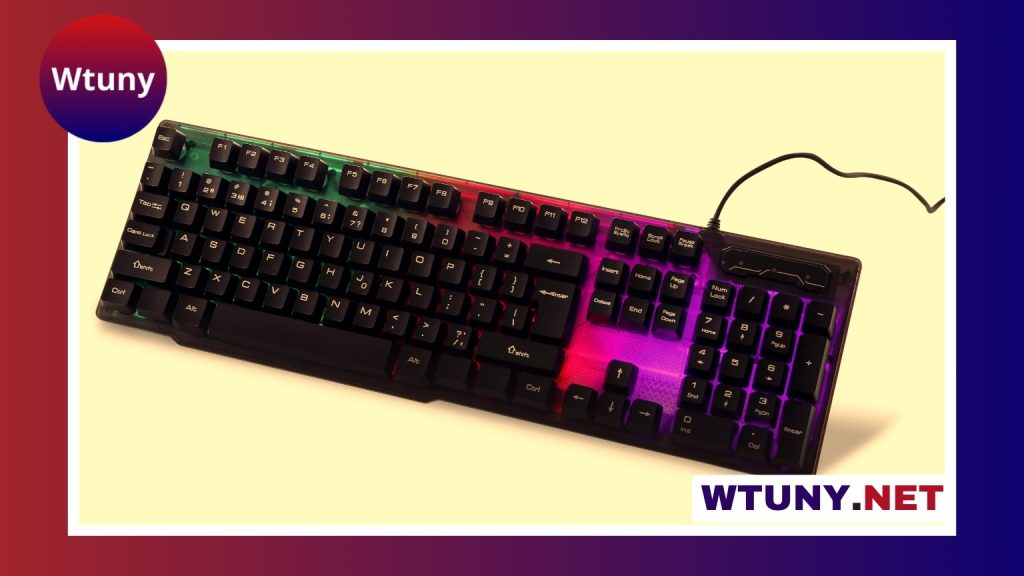
Backlighting can also differ between models. Some keyboards use a single-color light, while selected gaming models support customizable RGB effects through Asus software. Keyboard layouts may be ANSI, ISO, or country-specific, so check the key arrangement and legends before ordering a replacement.
Function keys, shortcuts, and the Fn lock
Most Asus laptops include a function row that combines standard F1–F12 commands with shortcuts for tasks such as adjusting volume, changing screen brightness, enabling airplane mode, or controlling media playback. The default action may vary by model and configuration.
If the function keys are behaving unexpectedly, check whether the Fn lock is enabled. Depending on the laptop, this setting may be controlled by a keyboard shortcut, BIOS or UEFI settings, Windows keyboard settings, or an Asus utility such as MyASUS. Some models also include dedicated keys for support tools, performance profiles, or other manufacturer features.
How to troubleshoot an Asus laptop keyboard
Begin with simple checks before removing keycaps or opening the laptop. Restart the computer and test whether the problem affects every application or only one program. If possible, connect a USB or Bluetooth keyboard. This helps determine whether the fault is limited to the built-in keyboard.
- Check for software-related problems: Install available Windows updates and the model-specific drivers or utilities provided for the laptop.
- Test outside Windows: If the keyboard works in BIOS or UEFI but not in Windows, the cause is more likely to be a driver, setting, or software conflict.
- Review accessibility settings: Features such as Filter Keys can change how keystrokes are registered. Check these settings if keys seem delayed or inconsistent.
- Inspect affected keys: Sticky, intermittent, or nonresponsive keys may be obstructed by dust, crumbs, or residue.
- Consider hardware damage: Liquid exposure, a damaged ribbon cable, or a failed keyboard assembly may require professional repair.
If an entire section of keys stops working, or the issue began after a spill or impact, avoid repeatedly testing the laptop and arrange an inspection. An external keyboard can provide a temporary solution, but it does not repair the built-in unit.
Cleaning and everyday maintenance
Turn off the laptop and disconnect its charger before cleaning. Hold the device securely and use short bursts of compressed air or a soft brush to remove loose debris. A lint-free cloth can be used on the surrounding surface. For light residue, apply a small amount of isopropyl alcohol to a cotton swab or cloth rather than pouring liquid directly onto the keyboard.
Do not saturate the keys, force them off, or use sharp tools around the switches. Laptop keycaps and their underlying scissor mechanisms are thinner and more fragile than those on many external keyboards. Keeping food and drinks away from the laptop is the most effective way to reduce avoidable damage.
Replacing an Asus laptop keyboard
Keyboard replacement is highly model-specific. On some Asus laptops, the keyboard is a separate replaceable part. On others, it is secured to the top case and connected to the motherboard with a ribbon cable. Backlighting, regional layout, and chassis design can also affect compatibility.
Use the complete model number—not just the product family name—when searching for a replacement. Confirm the language layout, connector, mounting points, and backlight configuration. If the laptop is covered by a warranty, contact Asus support before opening the case. Complex disassembly is usually best handled by an authorized or experienced repair provider.
Upgrading the built-in keyboard is less common than replacing a failed part. When a different typing feel, layout, or switch type is needed, an external keyboard is often the simpler and safer option.
Personalizing the keyboard
Supported Asus software may provide controls for backlighting, macros, performance profiles, and other keyboard-related functions. Windows remapping tools can also assign alternative actions to selected keys, although compatibility and permissions may vary.
Physical keycap changes are generally more practical on an external keyboard. Laptop keyboards are designed around a specific chassis and mechanism, so replacement keycaps may not fit correctly and can be damaged during removal. Before changing any setting or component, record the original configuration so it can be restored if necessary.
Choosing the right keyboard experience
- For extended typing: Look for a layout and key feel that support accurate, comfortable use.
- For portability: Compact ZenBook or VivoBook designs may reduce size and weight.
- For gaming: Consider supported lighting, shortcut controls, anti-ghosting features, and the keyboard’s response.
- For replacement: Match the exact model, region, connector, and lighting specification.
Whether you are cleaning a working keyboard, resolving an unresponsive key, or arranging a replacement, model-specific information is essential. Careful maintenance and accurate part matching can help preserve the usability of an Asus laptop without unnecessary repairs or modifications.






