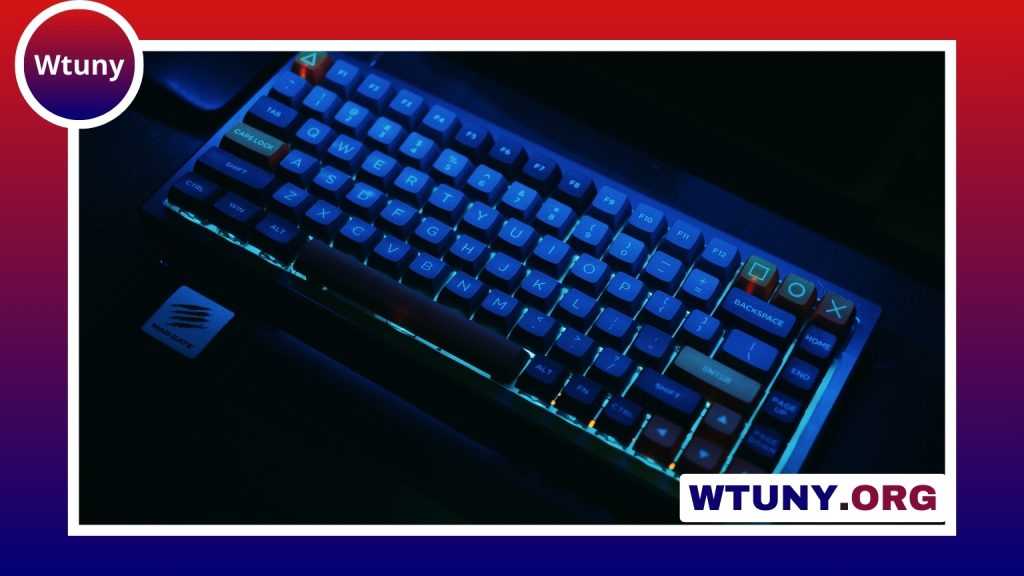
A Samsung Galaxy Tab can handle much more than browsing, streaming, and casual app use. Add a physical keyboard and mouse, and it becomes a more comfortable tool for writing, email, document editing, file management, and multitasking. The best setup depends on your tablet model, preferred connection method, and whether you value portability or a desktop-style workspace.
Ways to connect a keyboard and mouse
Galaxy Tab devices generally support external keyboards and mice through Bluetooth or USB-C. Bluetooth is usually the simplest choice because it avoids cables and leaves the tablet’s USB-C port available for charging or other accessories.
To connect a Bluetooth device, place the keyboard or mouse into pairing mode, then open Settings > Connections > Bluetooth on the tablet. Select the device from the available list and complete the pairing process. A keyboard and mouse can normally be paired separately.
Wired accessories and wireless receivers can also be used. Connect them through a USB-C OTG adapter or a compatible USB-C hub. This is useful if you already own a desktop keyboard, a mouse with a USB receiver, or several USB accessories. The adapter and cable must support data transfer rather than charging only.
Keyboard options for different setups
Keyboard covers and folios
A keyboard cover or folio is a convenient all-in-one option. These products are designed for particular Galaxy Tab models, so they can provide a close fit, tablet protection, and adjustable viewing angles in addition to physical keys. Samsung’s Book Cover Keyboard is one example aimed at selected Tab S models. Some versions also include a trackpad.
This style works well if you carry the tablet regularly and want the keyboard available without packing a separate accessory. The trade-off is that model-specific covers may be less flexible if you replace the tablet later.
Compact Bluetooth keyboards
A standalone Bluetooth keyboard is often better for travel, shared workspaces, or users who want to type on several devices. Compact models take up less room in a bag and can be paired with a phone, tablet, or laptop. The Logitech K380, for example, is a compact Bluetooth keyboard designed for multi-device use.
For frequent writing, pay attention to key spacing, key travel, layout, and overall stability. A small keyboard is convenient, but a larger layout may be more comfortable for long documents. Backlighting can also be useful when working in low-light conditions.
Choosing a mouse
A Bluetooth mouse keeps the setup cable-free and is convenient when working away from a desk. A slim model such as the Logitech Pebble M350 suits users who prioritise portability, while a model such as the MX Anywhere 3 may appeal to people who want a more substantial shape and additional multi-device flexibility.
Consider the mouse’s size, button placement, tracking feel, and battery arrangement. A very small mouse is easy to pack but may feel uncomfortable during extended use. If you switch between devices, look for a mouse that supports multiple paired devices and provides a simple way to change between them.
Using the tablet for laptop-style work
With a keyboard and mouse connected, standard Android shortcuts such as Ctrl+C and Ctrl+V can speed up editing. Pointer input is especially helpful for selecting text, working in spreadsheets, managing files, and navigating websites.
On Galaxy Tab models that support Samsung DeX, the combination can provide a more desktop-like workflow. DeX is designed around windowed applications, keyboard-driven navigation, and mouse control, making it useful for multitasking and document work. Availability and features depend on the specific tablet model, so check compatibility before buying accessories specifically for DeX.
Match the setup to your routine
- For travel: choose a compact Bluetooth keyboard and a lightweight mouse.
- For desk work: consider a full-size keyboard with comfortable spacing and a mouse that fits your hand.
- For protection and convenience: choose a model-specific keyboard folio or cover.
- For presentations: a wireless setup can make it easier to control documents or slides from a suitable distance.
- For drawing and notes: continue using a stylus for handwriting or illustration, while the keyboard and mouse handle editing, navigation, and file tasks.
Battery life, comfort, and maintenance
Check whether each accessory uses replaceable batteries or has a rechargeable battery. A keyboard that lasts for months on standard batteries may suit occasional travel, while a rechargeable mouse can be more convenient for regular use. Multi-device switching is another useful feature if you move between a Galaxy Tab, phone, and computer.
If an accessory stops responding, check its charge or batteries, confirm that Bluetooth is enabled, and try disconnecting and pairing it again. Restarting the tablet can also resolve temporary connection problems. For USB accessories, test the OTG adapter and make sure every cable supports data. Keeping accessory firmware updated may improve stability when updates are available from the manufacturer.
Final buying checklist
Before choosing a keyboard and mouse for your Samsung Galaxy Tab, confirm the exact tablet model and whether a keyboard cover fits it. Then decide whether you need portability, built-in protection, multi-device pairing, or a more comfortable desktop arrangement. A compact wireless combination is ideal for mobility, while a larger standalone keyboard and ergonomic mouse may be better for long work sessions.
The right accessories can make the Galaxy Tab feel considerably more capable without removing its portability. Focus on compatibility and comfort first, then choose the connection type and features that match the way you actually use the tablet.