
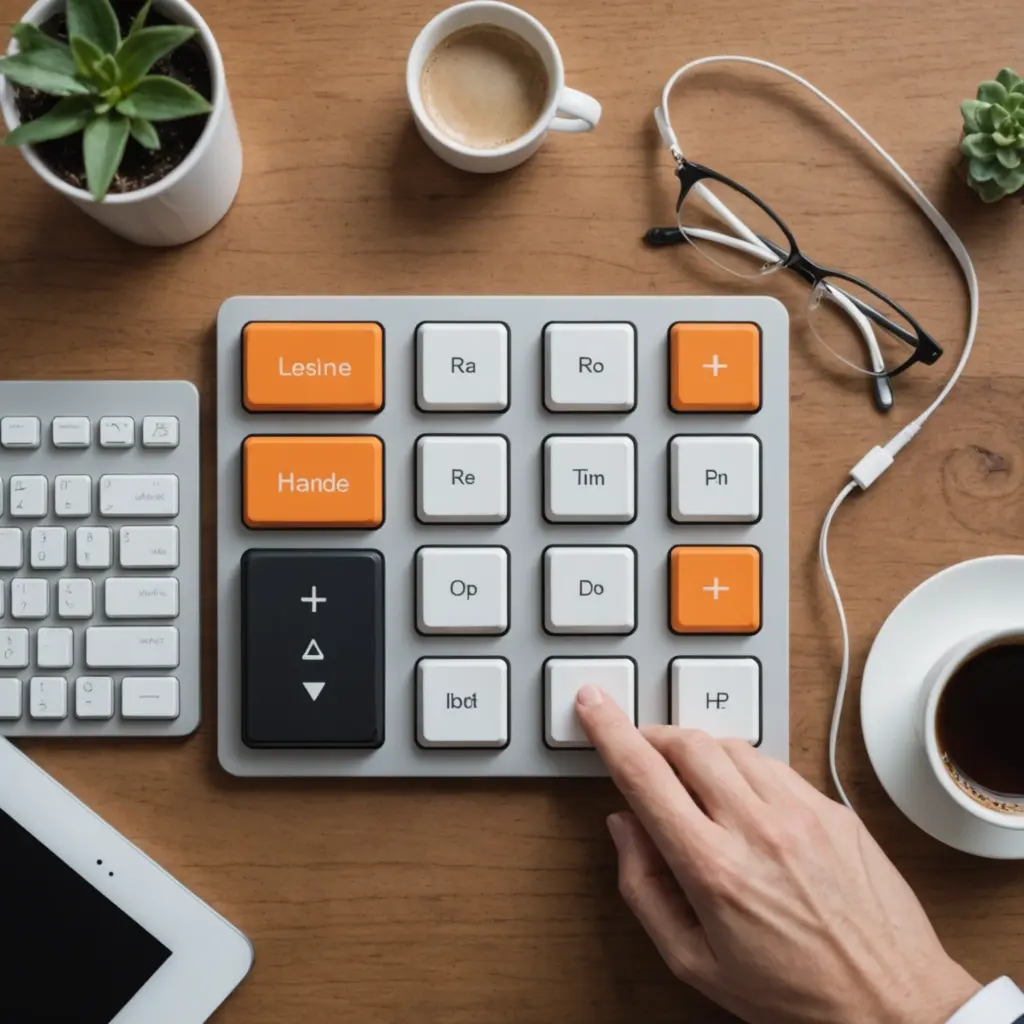
A numpad with screen combines the familiar layout of a numeric keypad with a small integrated display. Instead of limiting the device to number entry, the screen can provide profile labels, macro names, media information, timers, icons, or other status details. The result is a compact accessory that can support data entry, creative software, gaming, streaming, and everyday desktop control. Consider numpad screen integration when choosing keyboard layouts and sizes to balance functionality and footprint.
These devices are especially useful when you want dedicated numeric keys without replacing your main keyboard. A separate numpad can sit beside a compact laptop keyboard, move between workstations, or be assigned to a completely different set of shortcuts. The display adds context, helping you see what a key layer or button is assigned to before you use it.
What can a numpad screen display?
The screen’s capabilities depend on the hardware and its companion software, but common uses include:
- Showing the active macro or shortcut profile
- Displaying custom icons, labels, or simple status information
- Indicating media playback or volume controls
- Showing timers or other information relevant to a task
- Providing a visual reminder of layered key assignments
- Displaying battery information on supported wireless models
This visual feedback is valuable when the same keys perform different actions in different profiles. Rather than memorising every layer, you can use the display as a quick reference. It can also reduce the need to switch applications simply to check a setting or confirm which control mode is active.
Important features to compare
Key layout and size
Start with the physical layout. A compact numpad may include only the essential numeric keys, while a larger model can add navigation keys, function buttons, media controls, or extra programmable keys. A small unit takes up less desk space and travels easily, but a larger layout may be more practical if you need several dedicated actions.
Key height and angle also affect comfort. Low-profile designs provide a flatter, laptop-like feel, while taller mechanical keycaps and switches offer more pronounced travel and feedback. Consider how the numpad will sit beside your main keyboard and whether its height matches the rest of your setup.
Switches and construction
Mechanical switches are available in different feels, including linear and tactile options. The best choice depends on whether you prefer smooth key presses or noticeable feedback during numeric entry. If you are interested in experimentation, a hot-swappable numpad allows compatible switches to be changed without soldering.
Build materials matter as well. A rigid aluminium chassis can provide a more substantial feel and help keep the keypad stable, while a lighter case may be preferable for portable use. Look at the feet, cable position, and overall dimensions—not just the switch type—when judging how well the device will fit your desk. A compact input setup pairs a screen-equipped numpad with a compact computer keyboard for efficient desk control.
Connectivity and software
Wired models avoid battery management and are often straightforward to use at a fixed workstation. Wireless models offer a cleaner setup and greater flexibility, but require charging and may depend more heavily on companion software. Check how the device connects, how profiles are stored, and whether important settings remain available when the keypad is used with another computer.
Programmability is central to the screen’s usefulness. Look for support for remapping, macros, multiple layers, and profile switching if you want to use the pad for more than numbers. Software compatibility and firmware support are also worth checking, particularly if you plan to keep the device for several years.
Useful ways to use a numpad with screen
For accounting, spreadsheets, and other number-heavy tasks, a dedicated keypad can make frequent numeric entry more comfortable. The display may show the current mode or confirm which profile is active, while extra keys can be assigned to commonly used commands.
Creative professionals can map the keys to application shortcuts, tool changes, brush controls, or editing commands. The screen can act as a small legend for these assignments, reducing the need to memorise a complex layout. Gamers can use a programmable numpad for macros or game-specific profiles, provided the relevant software and rules allow those functions.
For streaming and media work, the device can provide dedicated controls for playback, volume, scene changes, or other repetitive actions. A visible profile label is useful when several sets of controls are assigned to the same keys. It can also serve as a compact status panel for selected notifications or system information when supported by the software.
Setup tips
- Put the most frequently used actions on the easiest keys to reach.
- Use clear profile names and screen labels instead of relying on memory.
- Keep related functions together, such as playback controls or editing commands.
- Test macros and layers before depending on them during important work.
- Configure battery indicators and alerts if you choose a wireless model.
- Angle the screen toward the person who needs to read it most often.
A numpad with screen is most effective when its display supports a clear workflow rather than adding visual distraction. Choose the size, switch feel, connectivity, and software features according to the tasks you perform every day. Whether you need faster numeric input, a compact shortcut controller, or a visible profile and status panel, the right device can add useful control without taking up the space of another full keyboard.






