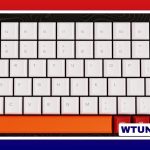
The Logitech K270 is a full-size wireless keyboard designed for everyday computer use. It is often associated with Logitech’s Unifying receiver system, but compatibility depends on the particular K270 version and the receiver supplied with it. Some keyboards work with a Unifying receiver, while others require their original dedicated nano receiver. Check K270 unifying receiver compatibility in the brand and model specific section for mainstream device details.
Does the Logitech K270 work with a Unifying receiver?
Not every Logitech K270 can be paired with a Unifying receiver. The easiest way to check is to examine the USB receiver that came with the keyboard. A small orange Unifying logo indicates that the receiver belongs to Logitech’s Unifying system and may support pairing with compatible Logitech devices.
If the receiver does not display the Unifying logo, it is likely a dedicated receiver intended for that keyboard. In that situation, a separate Unifying dongle will generally not work. The keyboard must be used with its original receiver or with a replacement specifically confirmed for that K270 model.
The markings on the keyboard itself can also help. Turn it over and record the model information, regional details, and any identifying labels before looking for documentation or a replacement receiver.
How to connect a Logitech K270
When the correct receiver is available, setup is usually simple:
- Insert the keyboard’s USB receiver into an available USB port.
- Check that the batteries are installed correctly and have sufficient charge.
- Move the power switch on the underside of the keyboard to the on position.
- Allow the computer a moment to detect the receiver and keyboard.
Many K270 units connect automatically as soon as the receiver and keyboard are switched on. If your specific receiver and keyboard include connect or reset controls, follow the pairing instructions supplied for that hardware. A blinking status light may indicate that the keyboard is waiting to connect.
Logitech utilities may provide additional pairing or configuration options on supported systems. However, installing software cannot turn a non-Unifying K270 into a Unifying device. The hardware and receiver must use compatible wireless standards.
How to identify a replacement receiver
Replacement listings may use different descriptions and part-number formats, including references such as Y R0042 or YR0042. These labels alone are not enough to prove compatibility. Receiver markings, keyboard model information, and the original packaging should be compared before purchasing. For broader keyboard connection steps, see how to pair compatible Logitech devices with your computer.
The safest approach is to keep and use the receiver originally supplied with the keyboard. If it has been lost or damaged, check the label on the bottom of the K270 and contact Logitech support or a reputable seller that can confirm the receiver is intended for that exact model and region.
Using the K270 with other Logitech devices
The K270’s full-size layout and number pad make it useful for general typing, office work, spreadsheets, and data entry. Regional versions may have different key layouts or labels, but the receiver question remains the same: only a K270 and receiver that support the same wireless system can be paired successfully.
If you want one USB dongle to handle both a keyboard and a mouse, verify Unifying compatibility for each device. A K270 that uses a dedicated receiver cannot be added to a Unifying receiver simply because another Logitech accessory already uses one.
Troubleshooting connection problems
If the keyboard does not respond, work through these checks:
- Replace the batteries or reseat them, then confirm that the power switch is on.
- Remove and reconnect the USB receiver.
- Try another USB port and restart the computer.
- Move the receiver closer to the keyboard, using a USB extension cable if necessary.
- Reduce nearby sources of wireless or electrical interference.
- Confirm that you are using the receiver intended for the keyboard.
If Unifying software cannot find the keyboard, check the receiver for the orange Unifying symbol before attempting further pairing. The failure may simply mean that the K270 version uses a dedicated non-Unifying receiver. In that case, return to the original receiver or obtain a model-matched replacement.
Key compatibility point
The Logitech K270 is not automatically compatible with every Logitech receiver. Identify the receiver type first, then use the matching connection method. The Unifying logo, the keyboard’s model label, and the receiver included with the keyboard are more reliable guides than a generic replacement listing. This check can prevent purchasing a dongle that the K270 cannot use.