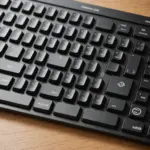
Logitech Unifying Software is a desktop utility for connecting compatible Logitech wireless keyboards, mice, and other peripherals to a single Unifying USB receiver. Instead of using a separate dongle for every device, you can pair several peripherals with one receiver and keep the remaining USB ports available for other equipment. For pairing issues, consult our brand specific support resources covering mainstream models and Logitech Unifying Software compatibility.
What Logitech Unifying Software does
The software provides a setup wizard for adding compatible devices to a Logitech Unifying receiver. It can also help you reconnect a device, move it to another compatible receiver, or troubleshoot a pairing problem.
A single Unifying receiver can manage up to six compatible devices. This makes the utility useful for a keyboard-and-mouse setup, a shared workstation, or a laptop that is regularly connected to a dock. The receiver is usually identified by the orange Unifying star logo, although compatibility should always be checked on the device or its documentation.
Unifying is different from Logitech’s other connection tools and newer receiver technologies. The Unifying application is intended for Unifying receivers and compatible products; it is not a universal pairing tool for every Logitech wireless device. For example, a product designed for Logi Bolt requires its corresponding Bolt receiver and software support.
How to download and install it
Obtain the Unifying software from Logitech’s support resources or another trusted source. Select the installer intended for your operating system rather than relying on a similarly named driver or utility. Mac users should choose the package intended for their macOS version, while Windows users should use the Windows installer.
- Download the appropriate Unifying Software installer.
- Install the application and follow the on-screen instructions.
- Insert the Unifying receiver directly into an available USB port.
- Open the application to start the device-pairing wizard.
For an initial setup, connecting the receiver directly to the computer can make troubleshooting easier than using a busy USB hub. Once the installation is complete, keep the receiver connected while pairing the first device.
Pair a Logitech mouse or keyboard
Before starting, check that the peripheral supports Logitech Unifying and install fresh batteries or charge it if necessary. Then open the software and begin the add-device process. Although the K120 is wired, reviewing its function keys complements Logitech Unifying Software guidance for compatible Logitech peripherals.
- Start the pairing wizard in Logitech Unifying Software.
- When prompted, switch the mouse or keyboard off and on again.
- If the device has a connection or pairing button, press it when instructed.
- Test the device when the wizard reports that pairing is complete.
Repeat the process for additional compatible peripherals. The software will add each device to the same receiver, provided the receiver has not reached its six-device capacity.
Move a device to another receiver
A compatible mouse or keyboard can be paired with a different Unifying receiver when you change computers or keep a spare receiver. Insert the receiver you want to use, open the Unifying application, and follow the normal pairing steps for that device. The device may stop communicating with its previous receiver once it has been assigned to the new one.
This is useful when a receiver is left in a laptop, misplaced, or reserved for another workstation. However, a receiver is not automatically compatible with every Logitech wireless product. Confirm that both the peripheral and receiver use the Unifying system before attempting to reassign them.
Troubleshoot pairing and detection problems
If the application cannot find a device or receiver, work through these checks:
- Confirm that the peripheral is powered on and that its batteries have sufficient charge.
- Remove and reinsert the receiver, then try another USB port.
- For initial setup, try a direct USB connection instead of a hub.
- Keep the receiver away from crowded USB equipment if interference appears to affect detection.
- Restart the computer and run the pairing wizard again.
- On Windows, check Device Manager if the receiver or its driver is not recognised.
- On Mac, review any system permissions or prompts associated with the installed utility.
If the problem continues, uninstalling the software, restarting the computer, and reinstalling the appropriate package may clear a damaged installation. Persistent failures can also indicate that the device uses a different Logitech connection system or is not compatible with Unifying.
When a Unifying receiver is useful
- Desk setups: One receiver can reduce cable and USB-port clutter for a keyboard and mouse.
- Laptops and docking stations: Leaving the receiver in a laptop or dock makes it easier to reconnect a paired setup.
- Shared workstations: Compatible peripherals can be reassigned without exchanging a separate receiver for every device.
- Travel: A single small receiver is easier to carry and less likely to be misplaced than several dongles.
Logitech Unifying Software is most useful when the hardware clearly supports the Unifying standard. Check the product markings and specifications before downloading the utility, especially if the device belongs to a newer Logitech product family.