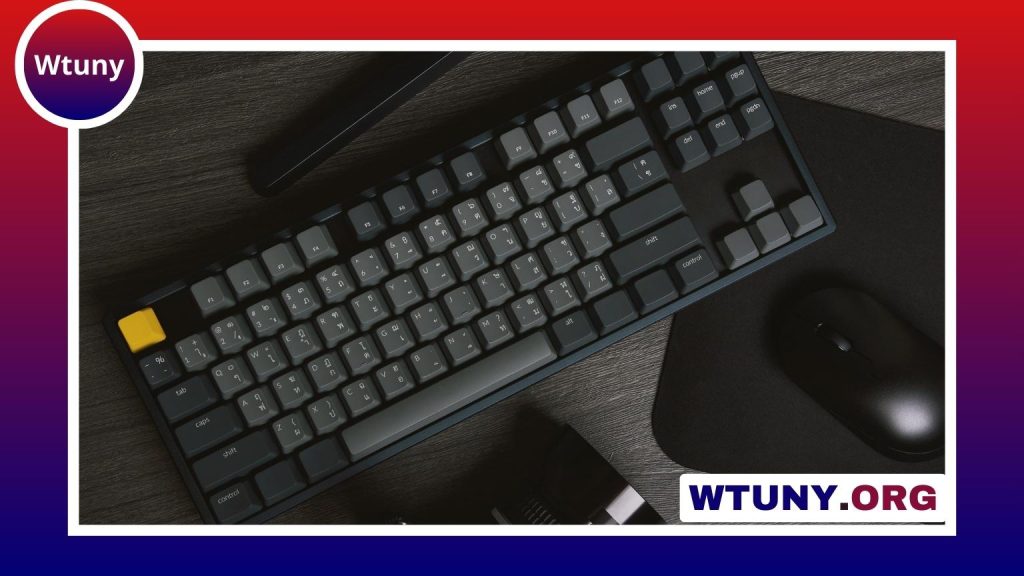
Keyboard lighting can make keys easier to see in low light, help separate gaming controls, and provide useful visual signals while you work. Depending on the keyboard, you may have only a few white-backlight brightness levels or a full RGB system with individually configurable keys. The right setup depends on the hardware, firmware, operating system, and any companion software supplied by the manufacturer. Learn how per key RGB controls integrate with firmware and hardware to expand keyboard lighting capabilities.
Identify the type of keyboard lighting you have
Before changing settings, determine what your keyboard actually supports. Common configurations include:
- No backlight: The keys cannot be illuminated through software or keyboard shortcuts.
- Single-color backlight: Usually offers off, low, medium, and high brightness settings.
- Zoned RGB: Different sections of the keyboard can use different colors.
- Per-key RGB: Individual keys can be assigned colors and effects.
Some lighting features are controlled directly by the keyboard’s hardware and firmware. Others require an operating-system utility, especially when you want custom colors, application profiles, or animated effects.
How to turn on a keyboard light
The quickest method is usually a physical keyboard shortcut. Look for a key marked with a backlit-keyboard, sun, or illumination symbol. On many laptops and compact keyboards, you hold Fn while pressing that key. The same shortcut may cycle through brightness levels or switch the lighting off.
The exact key varies by model. Common locations include the function row and the spacebar, but you should use the symbol printed on your keyboard or consult its documentation rather than relying on a universal shortcut. If nothing happens, try these checks:
- Press the keyboard-light key by itself and then with Fn.
- Check whether an Fn Lock or function-key mode has changed how the shortcut works.
- Connect the laptop to power if its battery-saving settings restrict illumination.
- Look in the manufacturer’s control application for a backlight switch or brightness setting.
Some computers also expose lighting controls through system utilities. On Linux, support may depend on the laptop manufacturer, keyboard model, desktop environment, or kernel interface, so the available controls are not consistent across systems.
Customize RGB effects and profiles
Basic shortcuts are often enough for brightness, but advanced RGB controls normally require the keyboard manufacturer’s software. Depending on the device, the application may let you:
- Set a static color or adjust brightness.
- Assign different colors to individual keys or zones.
- Choose effects such as breathing, waves, or reactive typing.
- Save separate profiles for games, writing, or other applications.
- Control lighting timeouts and behavior when the computer is idle.
- Synchronize compatible lighting across connected peripherals.
Install the utility intended for your exact keyboard or laptop model. A generic RGB program may not recognize the device, and incompatible firmware or software can cause controls to stop responding. If the utility offers a firmware update, follow the manufacturer’s instructions carefully and avoid interrupting the update. Explore keyboard light controls to adjust brightness, colors, and effects while customizing your keyboard lighting settings.
Useful ways to configure keyboard lighting
Lighting is most helpful when it supports a task rather than competing with it. A steady, moderately bright setting can improve visibility during late-night typing. For gaming, colored groups can distinguish movement keys, shortcuts, or frequently used controls. Separate profiles can also help identify which layout or application is active.
Color and brightness can support accessibility as well. High-contrast, static colors are generally easier to read than rapidly changing effects. If you use notification effects, keep them brief and distinct so they remain useful without becoming distracting. Fast animations and excessive brightness may be uncomfortable during long sessions.
Reduce battery use and visual distraction
Keyboard lighting uses additional power on laptops. To preserve battery life, lower the brightness, select a single color, disable animated effects, or set the backlight to turn off after a period of inactivity. If you mainly need help finding keys, a dim static backlight is usually more practical than a bright animated pattern.
On a desktop, power consumption may be less important, but comfort still matters. Adjust the lighting to work with the room’s ambient light, and avoid patterns that make it harder to focus on the screen or keys.
Troubleshoot a keyboard light that will not work
When the backlight or RGB controls stop responding, work through the simplest possibilities first:
- Check the shortcut: Try the documented illumination key with and without Fn, and verify that Fn Lock is not changing its behavior.
- Restart the computer: This can clear a temporary software or device-detection problem.
- Review firmware settings: Some laptops include a BIOS or UEFI option that enables or disables the keyboard backlight.
- Check the control software: Confirm that the correct device is selected and that its lighting has not been disabled in a profile.
- Update or reinstall drivers and utilities: Corrupted or outdated software can prevent RGB controls from working.
- Test the connection: For an external keyboard, try another USB port or another computer.
- Consider hardware failure: If the keyboard is not detected elsewhere and no lighting controls respond, the device may need service or replacement.
Firmware updates should be treated as a final software step and performed only with the correct file and stable power. If the keyboard works but its custom effects do not load, reset the lighting profile and recreate it after confirming that the companion application recognizes the device.
Choose settings that improve how you work
Keyboard lighting does not need to be elaborate to be useful. Start with reliable visibility, then add colors or profiles only where they provide a clear benefit. A simple, steady backlight often offers the best balance of readability, comfort, and battery life, while per-key RGB is valuable when you need task-specific layouts or visual feedback.