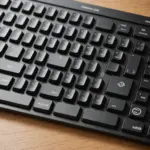
Typing in more than one language on a Mac does not always require a separate keyboard. The right combination of physical layout, macOS input sources, and keyboard shortcuts can make accented characters, alternate scripts, and language switching much easier. The best setup depends on how often you change languages, which characters you use, and whether you prefer Apple-style keys, a compact wireless design, or a mechanical keyboard. If you need Mac-compatible international keyboards, check our brand specific layouts for mainstream models and compatibility.
Decide whether you need a physical international layout
A keyboard with international or regional key labels can make frequently used characters easier to find. It may also provide a physical arrangement that matches the layout selected in macOS. This is useful for translators, students, editors, developers, and anyone who writes in multiple languages every day.
However, a localized keyboard is not essential for every multilingual user. If you mostly type English and only occasionally need characters such as é, ü, å, or ñ, an English-language Mac keyboard combined with macOS input tools may be sufficient. Software settings can change the keyboard mapping without replacing keycaps or buying another device.
Understand ANSI, ISO, and JIS layouts
The physical standard matters because it changes the shape and position of several keys. The three layouts most often encountered by Mac users are:
- ANSI: Commonly associated with the United States, with a wide horizontal Return key and a particular arrangement around the left Shift and backslash keys.
- ISO: Widely used in Europe. It normally has a taller Return key and differences around the left Shift area.
- JIS: Designed for Japanese typing and includes additional keys used with Japanese input methods.
Choose the layout that matches your main typing environment rather than relying only on the word “international” in a product description. A keyboard can support several languages in software while still having a physical layout that feels unfamiliar. If you switch between Macs or keyboards, using the same physical standard where possible can reduce mistakes.
Configure language input sources in macOS
macOS includes built-in tools for multilingual typing. To add a language or alternate layout, open System Settings, go to Keyboard, and find Input Sources. Add the layouts or input methods you use, then make the input menu visible if you want an on-screen indication of the active choice.
You can switch input sources with a keyboard shortcut, commonly Control-Space or Command-Space depending on the system configuration and any existing shortcut assignments. If the shortcut does not behave as expected, review the keyboard shortcut settings and check for conflicts with other macOS features.
The Keyboard Viewer is particularly helpful when learning a new layout. It shows the characters produced by the current input source, including the results of holding modifier keys such as Option and Shift. This can be more reliable than guessing from printed key labels when the physical keyboard and software layout differ.
Type accents from an English Mac keyboard
For occasional accented characters, macOS offers several convenient methods. Holding down a letter can display a selection of related accented forms when that character supports the feature. Select the desired character from the pop-up menu using the mouse or the displayed number. An international Mac keyboard pairs well with a gaming audio setup for comfortable multilingual sessions.
Option-key combinations are useful for repeated work. For example, Option-E followed by A produces á, Option-U followed by U produces ü, and Option-N followed by N produces ñ. The exact result depends on the active input source, so Keyboard Viewer can help confirm the available combinations.
If you repeatedly enter names, terminology, or other specialist text, custom text replacements can reduce repetitive typing. These are useful when you want to keep an English physical layout but regularly insert a small set of non-English words or symbols.
Keyboard styles to consider
Different keyboard designs suit different multilingual workflows:
- Apple Magic Keyboard: A straightforward choice for users who want Apple-style modifier labels and close integration with common Mac shortcuts.
- MacBook keyboards: Convenient when portability matters and you are comfortable using the built-in layout.
- Logitech MX Keys for Mac: A low-profile option for office users who want a Mac-oriented layout and multi-device switching.
- Keychron keyboards: Worth considering if you prefer mechanical keys, different switch options, or a choice between ANSI and ISO configurations.
These are examples rather than universal recommendations. Before buying, confirm the exact regional layout, operating-system support, connection type, modifier labels, and whether the keyboard can be used with the Mac devices in your workspace.
Build a practical multilingual workflow
Keep only the input sources you use regularly so switching remains predictable. Translators and editors may prefer dedicated layouts, while occasional users may find an English keyboard with accent shortcuts faster. Developers testing localized software should remember that changing the input source does not change the physical key arrangement; layout-specific testing may require checking both the software mapping and the actual hardware.
For travel or shared desks, a compact Bluetooth keyboard can provide a consistent typing experience across a MacBook and desktop Mac. Save your preferred input sources and text replacements where appropriate so that moving to another Mac requires less manual setup.
The ideal international keyboard for Mac is the one that matches both your hands and your language habits. Start by identifying the characters and layouts you use most, then combine suitable hardware with macOS input sources and shortcuts. That approach can provide fast multilingual typing without forcing you to replace your keyboard unnecessarily.