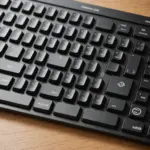
The keyboard is one of the most frequently used parts of an HP Pavilion 15 Notebook PC. When a key becomes sticky, starts repeating, or stops responding, the cause may be as simple as debris or a software problem—or it may indicate damage to the keyboard assembly. Because the Pavilion 15 name covers multiple configurations and model generations, both troubleshooting and replacement require attention to the laptop’s exact model number. For keyboard repairs, refer to brand-focused resources covering HP Pavilion 15 models for exact part compatibility.
Understanding HP Pavilion 15 keyboard variations
HP Pavilion 15 keyboards commonly use an island-style layout with separate, low-profile keys. However, the physical design is not identical across every Pavilion 15 model. Depending on the configuration, a keyboard may include:
- A numeric keypad or a compact layout without one
- White keyboard backlighting or no backlight
- Function keys for volume, brightness, wireless controls, or media playback
- Different key spacing, connector positions, mounting points, and ribbon-cable designs
These differences matter when diagnosing a fault or ordering a replacement. The Pavilion 15 product name alone is not enough to identify a compatible part.
Before buying a replacement keyboard
Find the complete model number on the laptop’s bottom label or, on some designs, beneath the battery. Use that information to search for a replacement and compare the listed part number. Product photographs can also help you check the keyboard layout, ribbon connector, screw locations, and the presence of a numeric keypad.
Match the original features as closely as possible. If the laptop was supplied with a backlit keyboard, a non-backlit replacement may fit but will not provide the same lighting function. The same applies to numeric keypads and other layout differences. Confirm the connector and mounting arrangement before ordering, and check the seller’s return policy in case the part does not match your specific machine.
Diagnosing common keyboard problems
Keys that do not respond
First determine whether the problem is limited to Windows or occurs throughout the computer. If the affected key fails before Windows loads, the fault is more likely to be physical. If it works outside Windows but not within the operating system, software settings or drivers may be involved.
For software-related problems, restart the laptop, check the keyboard settings, and use Device Manager to update or reinstall the keyboard driver. A built-in keyboard troubleshooter may also identify configuration problems. If only one or two keys fail while the rest work normally, dirt, damage beneath the keycap, or wear in the keyboard membrane may be responsible.
Sticky keys, repeated input, or accidental presses
Turn off the laptop and inspect the affected area for crumbs, dust, or residue. Use short bursts of compressed air while holding the laptop so loosened debris can fall away from the keyboard. Wipe the surface with a soft, dry microfiber cloth.
Keycaps and their scissor mechanisms can be fragile. Do not pry them off unless you know the mechanism used by your model and can reinstall it safely. If cleaning beneath a key is necessary, use only a small amount of isopropyl alcohol on an appropriate swab and keep liquid away from openings and electronics. For broader keyboard case alternatives, compare this HP Pavilion 15 notebook keyboard with Logitech’s tablet-focused design.
Liquid spills
After a spill, shut the laptop down immediately, disconnect the charger, and remove the battery if it is removable. Do not continue testing the computer while it is wet. Let the laptop dry thoroughly before attempting to power it on. A significant spill can affect more than the keyboard, so professional inspection is advisable if multiple components behave abnormally afterward.
Cleaning and everyday maintenance
Regular light cleaning can reduce the buildup that causes stiff or unreliable keys. Keep food and drinks away from the laptop, wipe the keyboard periodically, and use compressed air carefully around the gaps. Avoid spraying cleaner directly onto the keys.
An external USB or Bluetooth keyboard can reduce wear on the built-in keyboard during long typing sessions. When carrying the Pavilion 15, close the lid and use a suitable bag. A thin keyboard cover may help protect against dust or accidental contact, provided it does not prevent the lid from closing normally.
Replacing the keyboard safely
Keyboard replacement is a moderate repair because access may require removing the bottom cover, battery, or part of the top case. The exact procedure depends on the Pavilion 15 model. Before starting:
- Shut down the laptop and unplug the charger.
- Remove the battery when the design allows it.
- Work on a clean, flat surface and take precautions against static electricity.
- Keep track of screws and photograph cable locations before disconnecting anything.
Keyboard ribbon cables commonly use a small zero-insertion-force connector. Release the locking bar or latch before pulling the cable, then align the replacement cable fully before securing it. Never force a connector, screw, or key mechanism. Test the new keyboard before replacing every panel so that any connection problem can be corrected easily.
When professional repair is the better option
Use a repair shop or service centre if the laptop has suffered extensive liquid damage, several system components are affected, or the repair requires soldering or motherboard removal. Professional assistance is also sensible if you cannot confirm the correct replacement part or are uncomfortable handling delicate ribbon connectors and plastic clips.
With the correct model information, careful cleaning, and a cautious approach to disassembly, many HP Pavilion 15 keyboard problems can be diagnosed without replacing the entire laptop.