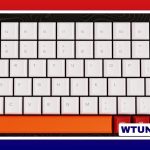
An on-screen keyboard lets you type with a mouse, touchscreen, trackpad, or other pointing device instead of a physical keyboard. It can help when a keyboard stops working, when you are using a tablet or 2-in-1 computer, or when you need accessibility features such as larger keys and alternative input methods. Explore on-screen keyboard features to discover accessibility, customization, gesture typing, and advanced input technologies.
The exact name and location of the feature varies by operating system. Use the section for your device below.
Turn on the on-screen keyboard in Windows
Windows provides two related options: the traditional On-Screen Keyboard, designed primarily for accessibility, and the touch keyboard, which is intended for touchscreen devices and includes features such as emoji and handwriting input.
Open the traditional On-Screen Keyboard
- Open Settings.
- Go to Accessibility, then select Keyboard. In older Windows versions, this area may be called Ease of Access.
- Turn on On-Screen Keyboard.
For a quicker method, press Windows key + Ctrl + O. You can also open the Start menu and search for On-Screen Keyboard. If you cannot type in the search box, press Windows key + R, enter osk, and press Enter.
Show the Windows touch keyboard
- Right-click an empty area of the taskbar and open Taskbar settings.
- Find the setting for the Touch keyboard or system tray icons.
- Set the touch keyboard icon to appear on the taskbar.
- Select the keyboard icon whenever you need to type.
The wording can differ between Windows releases. The traditional On-Screen Keyboard is generally better when you need a complete desktop keyboard, while the touch keyboard is more convenient on a touchscreen.
Show a keyboard on a Mac
macOS includes an accessibility keyboard and a Keyboard Viewer. These tools display keys on screen and allow you to select them with a mouse or trackpad.
Use Accessibility Keyboard
- Open System Settings.
- Select Accessibility, then choose Keyboard.
- Turn on Accessibility Keyboard.
Open Keyboard Viewer
To make Keyboard Viewer easy to access, open the Mac keyboard settings and enable the option to show the Input menu or keyboard and emoji viewers in the menu bar. Select the input menu at the top of the screen, then choose Show Keyboard Viewer.
Menu names may vary slightly by macOS version. If you do not see the option, use System Settings search for “Keyboard Viewer” or “Input menu.”
Enable an on-screen keyboard in Linux
Linux settings depend on the desktop environment and distribution. Many systems provide an accessibility option called Screen Keyboard or On-Screen Keyboard in the accessibility settings. Exploring keyboard input options can help you compare virtual typing with quieter non-mechanical gaming hardware.
In GNOME-based environments, open Settings and look under Accessibility or search the settings for “on-screen keyboard.” Some distributions also offer applications such as Onboard or Florence. If one is installed, launch it from the applications menu. If it is not installed, use your distribution’s software manager to find an available virtual keyboard package.
Use the virtual keyboard on Android
Android normally displays its virtual keyboard when you tap a text field. If it does not appear, check which keyboard is enabled:
- Open Settings.
- Go to System, then Languages & input.
- Select On-screen keyboard or a similarly named option.
- Enable the keyboard you want to use and select it as the default.
On some phones and tablets, connecting a Bluetooth or USB keyboard hides the virtual keyboard. Tap a text field and look for a keyboard button in the navigation bar or notification area. Selecting it may let you show the on-screen keyboard while the physical keyboard remains connected.
Show the keyboard on an iPad
The iPad keyboard normally appears when you tap a text field. If a hardware keyboard is connected, iPadOS may hide the virtual keyboard.
Open Settings > General > Keyboard and look for the option to show the on-screen keyboard while a hardware keyboard is connected. Turn it on if available. When typing, you can also look for the keyboard button in the shortcut bar or bottom-right corner of the screen and select the option to show the keyboard.
Customize virtual keyboard features
Depending on the platform and keyboard app, you may be able to adjust:
- Keyboard language and layout
- Key size, theme, or contrast
- Split or floating layouts for tablet typing
- Predictive text and autocorrection
- Swipe or glide typing
- Voice dictation and handwriting input
- Numeric keys, function keys, or accessibility controls
Review the keyboard’s own settings when you need to change these options. Accessibility keyboards may also support custom layouts, scanning controls, or alternative ways to select keys.
What to do if the keyboard does not appear
- Tap or click inside a text field first; virtual keyboards usually appear only when text input is active.
- Restart the device and try opening the keyboard again.
- Check that a keyboard is enabled and selected as the default input method.
- Disconnect a Bluetooth or USB keyboard temporarily if it is suppressing the virtual keyboard.
- On Windows, confirm that the touch keyboard icon is enabled in the taskbar settings.
- On Linux, check the accessibility settings and confirm that the virtual keyboard application is installed and running.
- Install pending system or keyboard-app updates if the problem began after a software change.
For an immediate Windows workaround, press Windows key + Ctrl + O or run osk. On mobile devices, switching the selected keyboard off and on again can also restore normal input.